
Staying organized and communicating with members of the congregation can be inexpensive and easy with IconCMO. Monthly newsletters, bulletins, schedules, and calendars can be created in Word or Publisher, converted to PDF and attached to an email message without the high cost of printing and mailing, not to mention the time spent folding and stuffing envelopes. If an event is canceled, send out a quick text message notifying individuals.
Email and Text Message Setup:
- Go to Settings: Personal and enter the church email address you want to use for outgoing emails. This will automatically populate in the “From” field when sending emails.
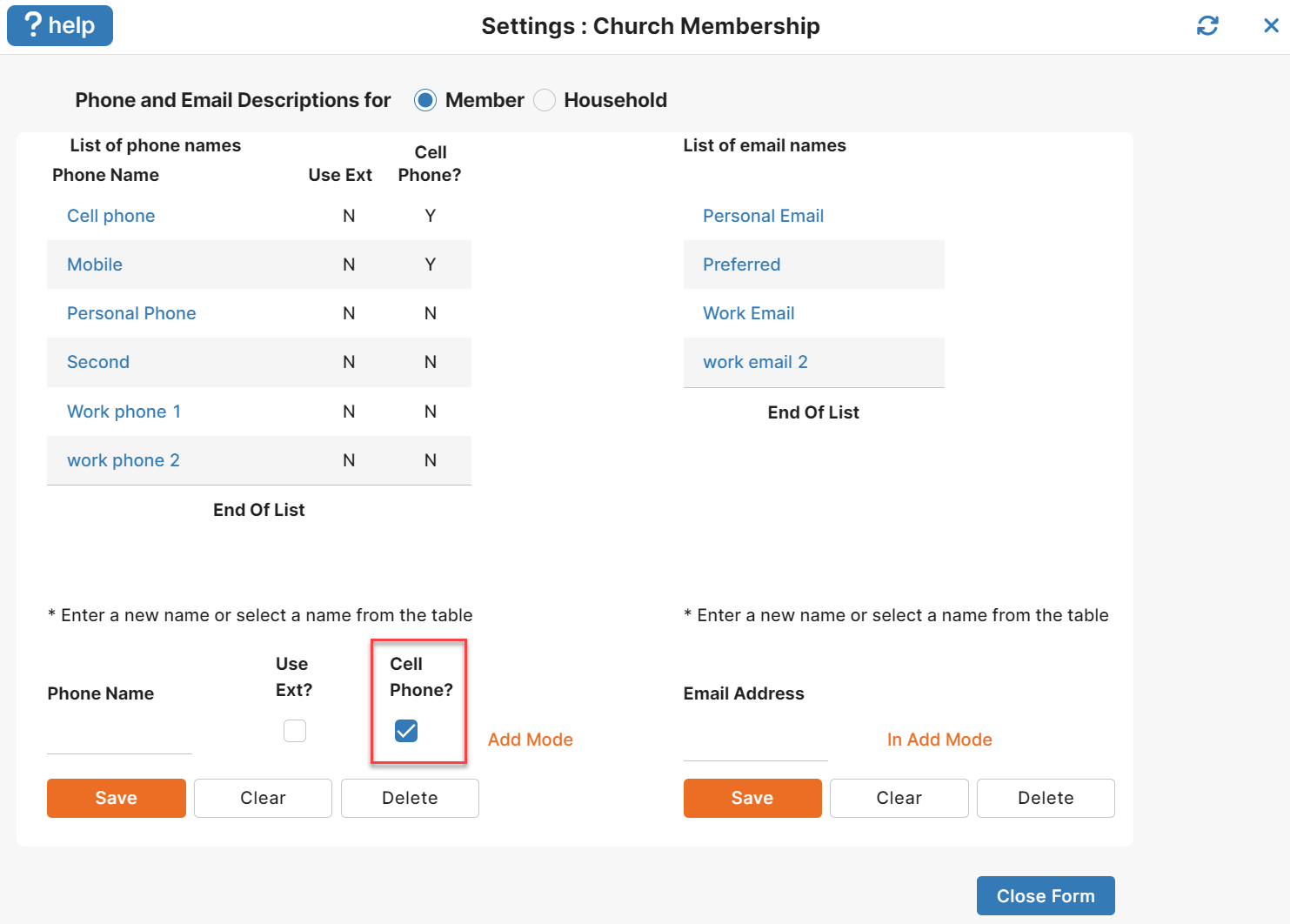
- Go to Settings: Church Membership
- Click Maintain Phone – Email Types
- This is where you will title the phone numbers and emails you wish to maintain e.g. Home Phone, Cell Phone, Work Phone, Personal Email, Work Email
- When you title the cell/mobile phone, be sure to check the “Cell Phone?” box on the right. When entering someone’s phone number, this will allow you to select the carrier and send them text messages. Cell phone carriers must be identified in order to send text messages.
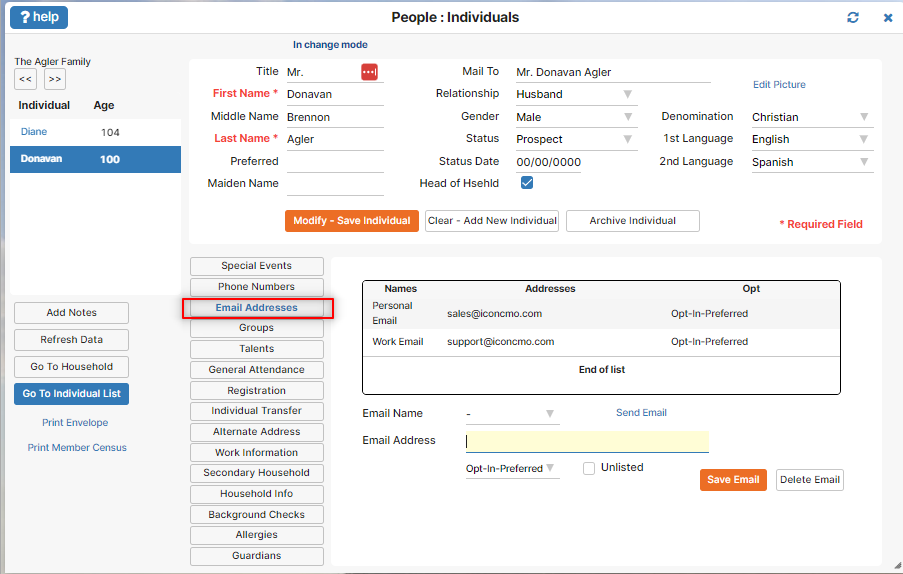
Individual Email Setup:
- Go to People: Individuals.
- Select the individual by clicking on them.
- Click on the button that says “Email Addresses”.
- At the bottom, select the “Email Name” e.g. Work email or Personal email, that you want to update.
- Type in the individual’s email address
- Select Opt-In Preferred, Opt-In, Opt-Unknown, or Opt-Out
- If the individual does not want their email address listed in the church directory, check the “Unlisted” box
- Click “Save Email”.
Individual Text Message Setup:
- Go To People: Individuals.
- Select the individual by clicking on them.
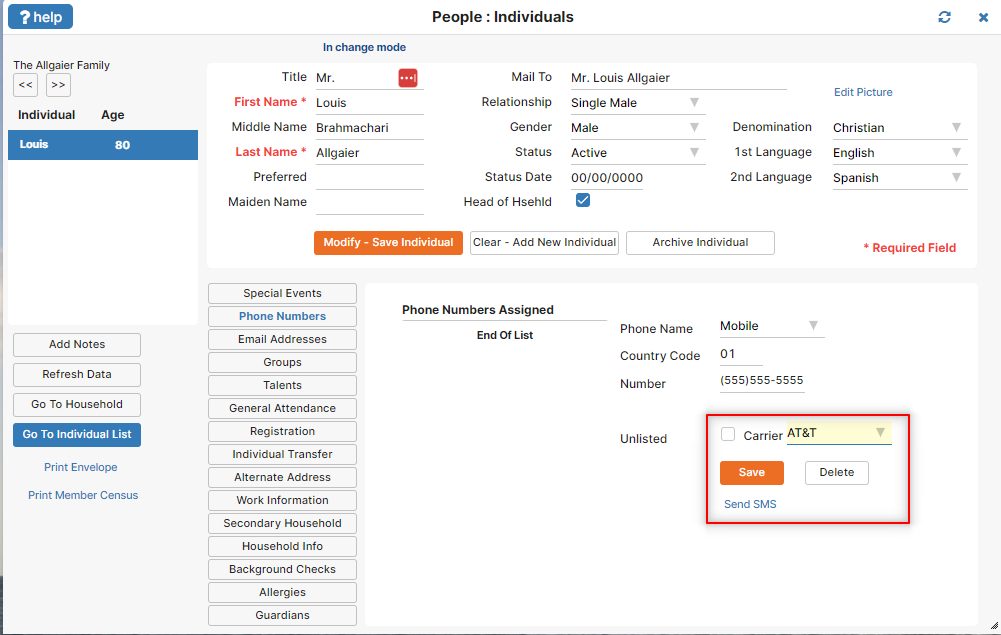
- Click the button that says “Phone Numbers”.
- Select the Phone Name e.g. Home Phone, Cell Phone that you want to update.
- Type in their phone number
- Select their carrier using the drop-down arrow
- Click “Save”.
Once emails and phone numbers are entered, you will want to create groups to contact e.g. Teachers, Parents, and Ushers. Groups can only be entered by individuals. You may still show household groups in your Groups module, but these are a legacy feature that are not able to be created anew. For household groups, please be aware that the email address listed for the household will be used. If you want specific individuals within the household to receive the email, set the individual group up in the Groups module.
Groups Setup:
- Go to People: Groups.
- Click the “Add New Group” and enter the folder and group name in the respective fields.
- To add group members, click the pen and paper icon to access the Edit Group screen.
- Then, add individuals to your group. You can do this one at a time, or in bulk.
- One at a time: Scroll through the list of individuals on this screen or use the search bar. Checkmark the individuals that belong to the group.
- In Bulk: Select your criteria using the three dots icon, such as active, age range, name range etc. Then, click the “Add All” button to add everyone that matches that criteria.
- Click “Close” to conclude your editing of this group.
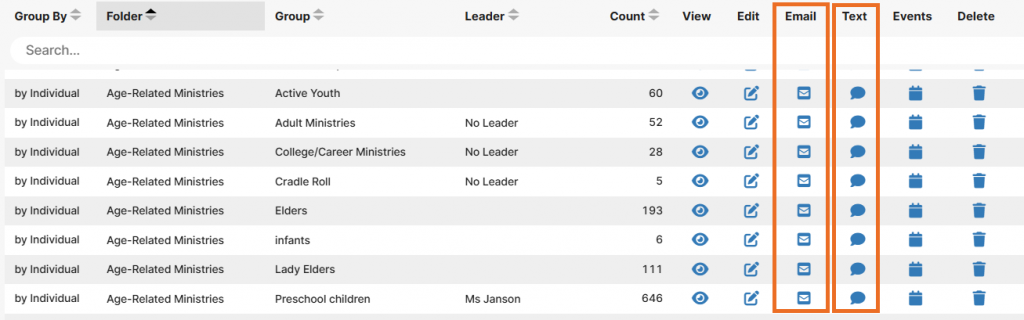
Once your groups are set up, you can begin sending emails or text messages by selecting the group you wish to contact and clicking on either “Text” or “Email” icon for each group.
Donation statements can also be emailed monthly or quarterly so members can review their giving. Or save even more time by setting up the Member Portal to allow members to review their giving whenever they want.