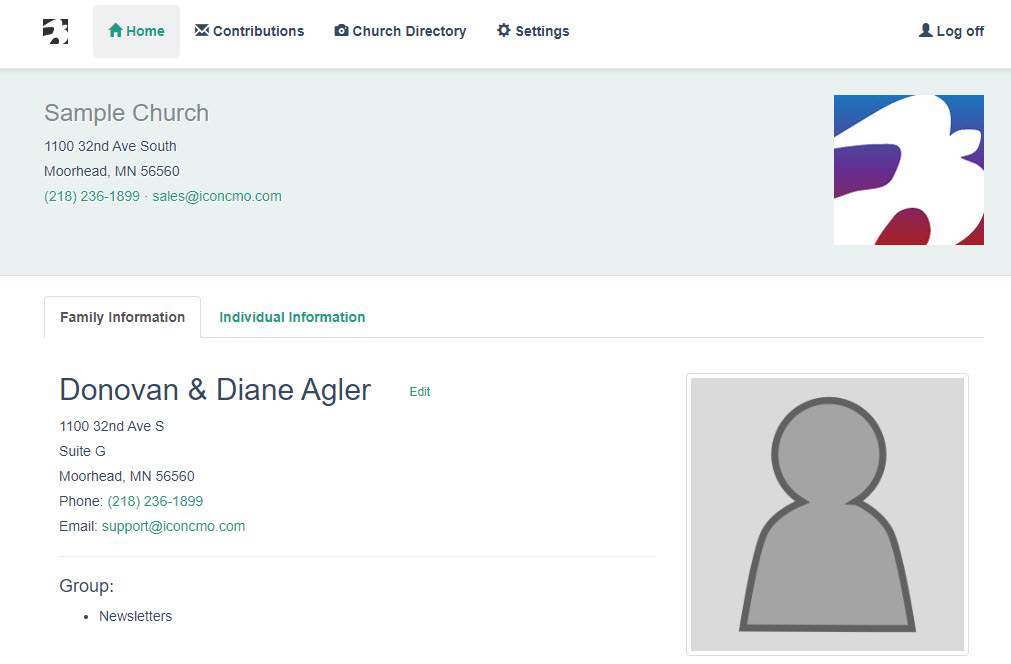
The Member Portal is one of the most useful resources available for church members and staff. And the best part is, there’s no additional cost! It’s already included in your subscription to IconCMO. If you aren’t familiar with the member portal module, it’s a secure self-service login where
- members can view their own contact information,
- donation history,
- and access a church directory.
It’s even mobile-friendly so members can sign in using their smart phone or tablet!
Step 1: Set up your customized login page for the member portal
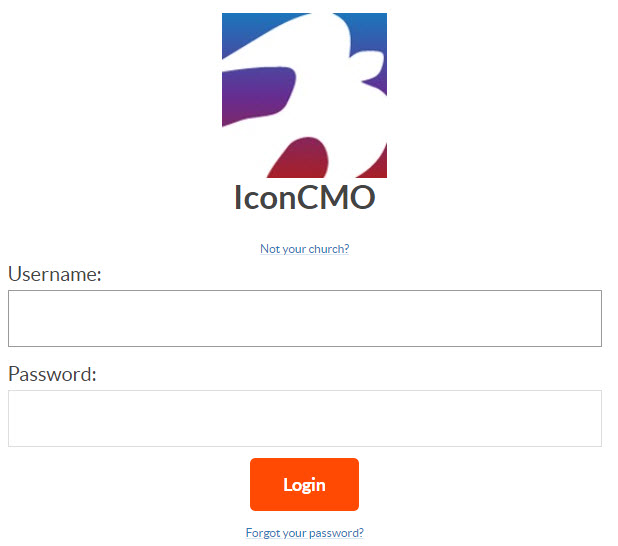
We just released an exciting new feature that allows church staff and volunteers to log in via a customized login page.
Standard Login
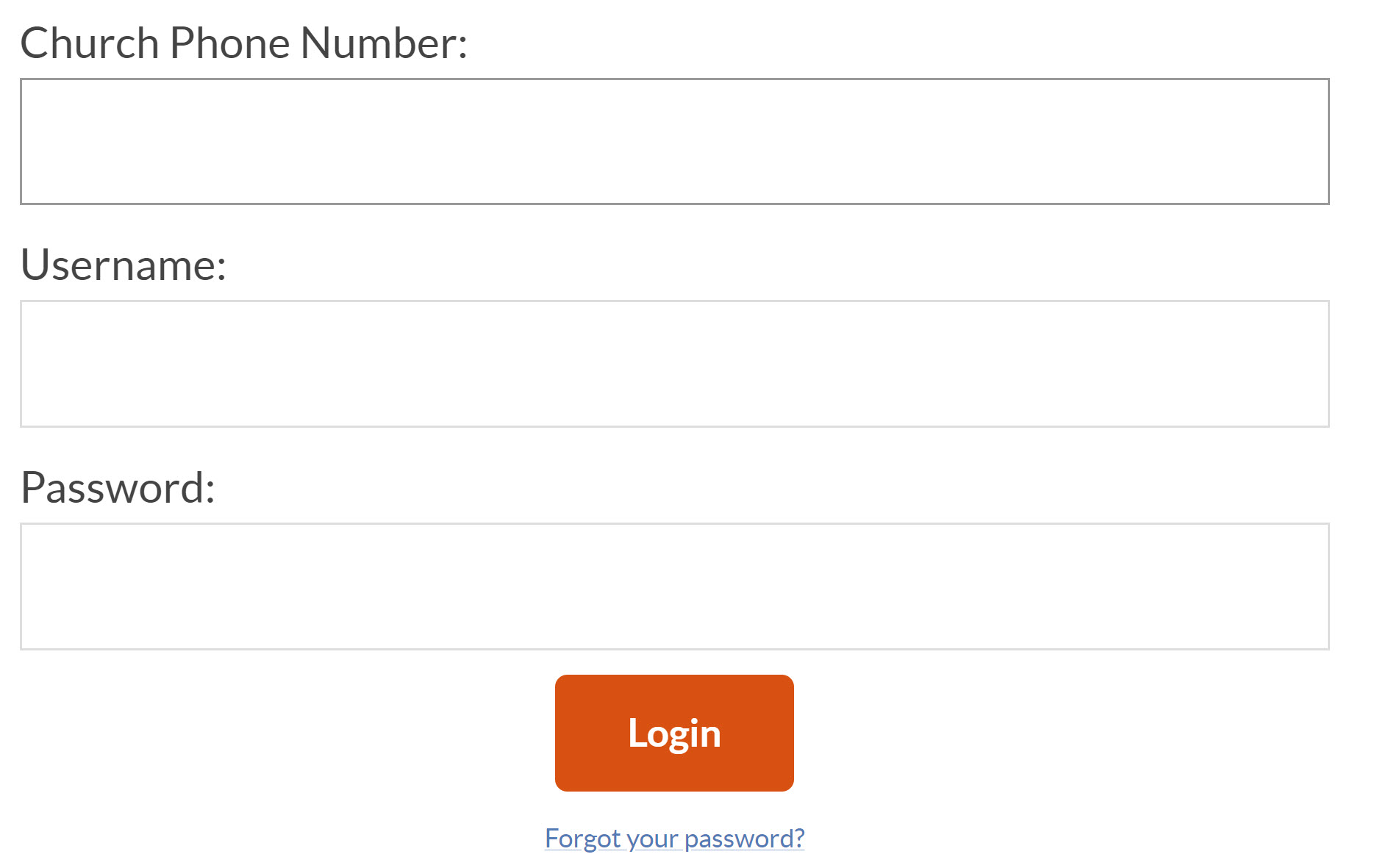
Custom Login
Step 2: Assign security permissions
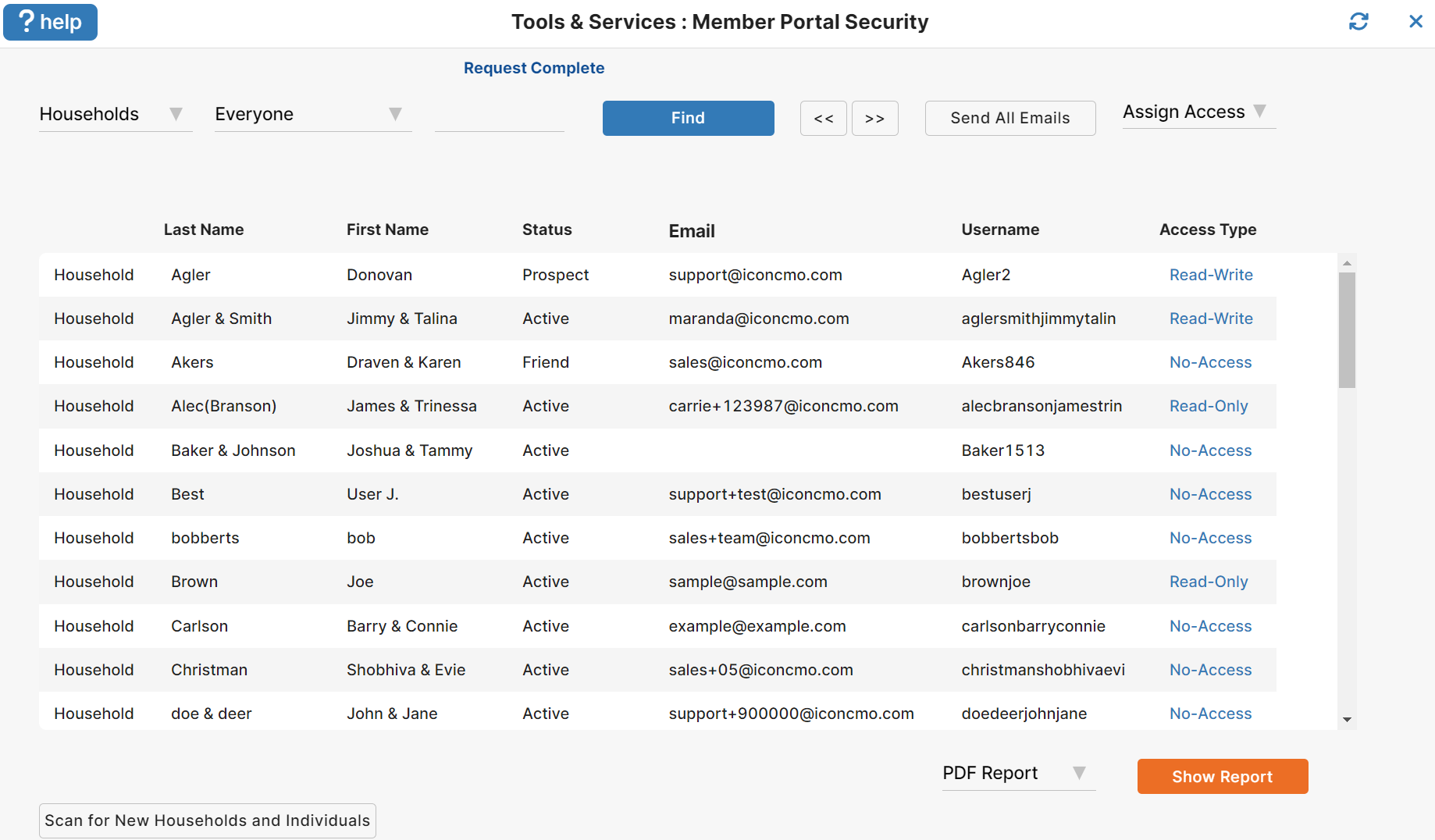
Added households are automatically assigned a user name in the member portal security window in IconCMO. But the church controls the type of access members get.
- No-Access is initially assigned to all households entered into IconCMO. So by default, households do not have access to the member portal.
- Read-only access allows members to login and view their information. If anything is incorrect, members can email changes to the church office directly from the member portal.
- Read-write access allows members to view and make changes to their own contact information. (For obvious reasons, members cannot make changes to their giving history or other members’ information in the church directory. They would need to notify the church office of any errors.)
Step 3: Give the member portal a try
If you’re interested in taking the member portal for a test drive, follow these steps.
- If you’re not already, set yourself up as a household in your church’s database (you can delete it later.)
- Go to Tools & Services: Member Portal Security.
- Search for your last name and click on the blue No-Access under Access Type.
- Change your security to the Read-Only or Read-Write.
- After you change the access type, you will notice a message at the bottom of the box that reads, “Send email to “your name” telling them their access has been granted?” Click Send Email.
- When you log in, make sure you are using the new user name emailed to you, not your staff login. Note: Make sure you use a different user id and password than your staff login for IconCMO.
Step 4: Generate reports
Don’t worry, if you give members read-write access so they have the ability to change their personal information. Because you will always have up-to-date by running these reports in the People: Households -Reports window.
Member Portal Changes – Provides the church with the member’s name, the changed information and the date of change.
Member Portal Last Log in – Provides the names of households who have accessed their information.