Get the Online Church Directory Code
Go to this website and download the directory code – it is the first link called “directory example”.
Note: If you are setting up the online directory on a regular website, you can just follow the instructions on this README site.
Start The Setup
Right-click on the folder you just downloaded, then select the ‘Extract All’ to unzip the files.
Next, copy the extracted “directory” folder into the main WordPress folder on the web server, right next to the wp-admin, wp-content, and wp-includes directories.
Open the directory folder, then find the directory.js file – it should be listed as file type “JScript Script File”.
Right-click on the directory.js file, then select “Edit” to open the file with Notepad.
Change the phone number from “5555555555” to your organization’s log-in phone number for IconCMO. This links the church’s website to the IconCMO database to produce the online church directory.
Note: The “directoryFolderName” needs to match the folder containing your directory files. Thus, if you changed the name to something other than “directory”, be sure to update that as well.
Add a forward slash in front of the “directoryFolderName”. Please do not miss this step. WordPress is finicky about this. The forward slash is not automatically included in this file when it is downloaded (i.e. directoryFolderName: “/directory”).
Save the changes and exit Notepad.
Changes in WordPress to Finish the Setup
Log in to your WordPress Administrator Dashboard, then create a new page.
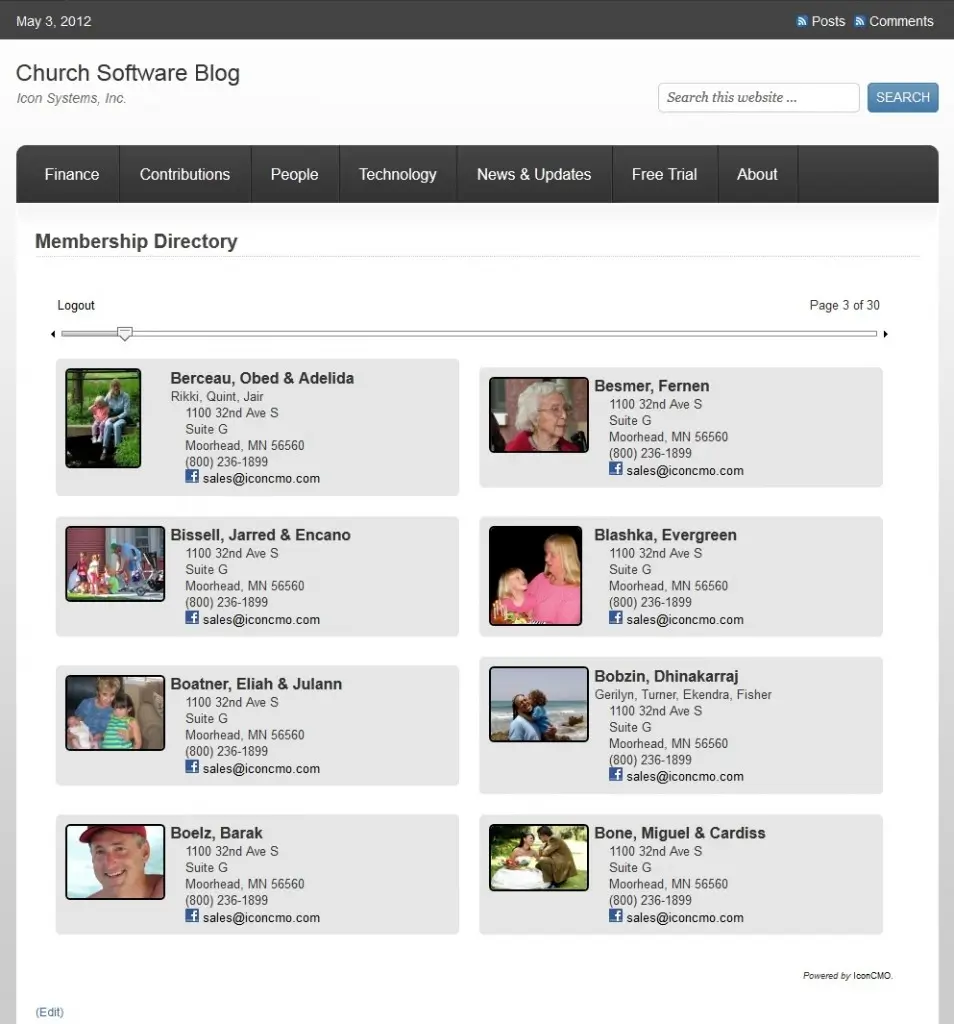
Note: The folder you create and the page you create cannot have the same name. In this example, we left the folder name as “directory” and titled the WordPress page something else – Membership Directory.
Edit the page and select the “HTML” view. Then, copy the following code and paste it into the new page:
<script type="text/javascript" src="/directory/directory.js"></script>
<div id="directory-div"></div>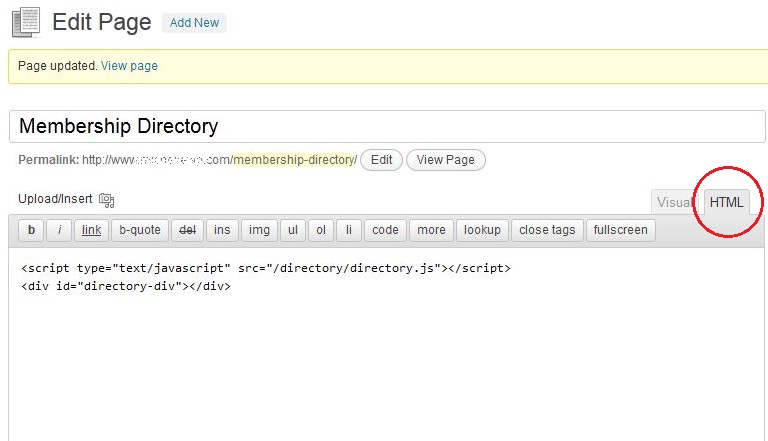
Publish and view the page. You should get a pop-up message asking for a username and password to access your organization’s IconCMO database.
Note: If the username is deleted or the password is changed you will need to come back and update it here. You may want to create a separate username and password solely for the purpose of this directory.