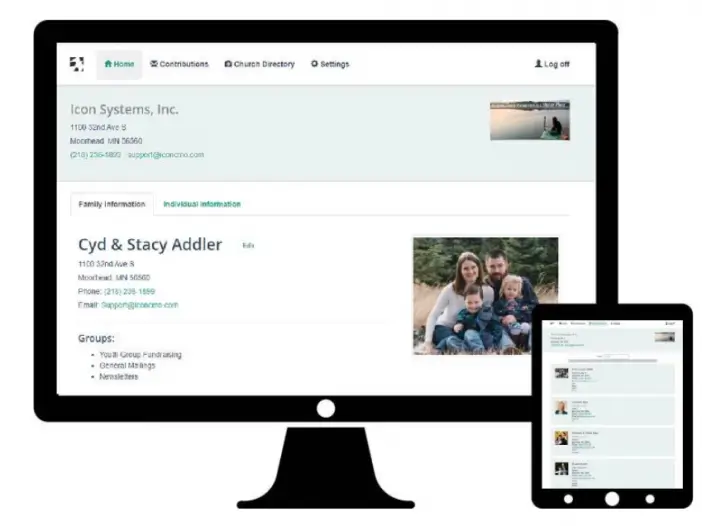

I recently starting working at Icon Systems and was excited to have a new touch screen computer. After
downloading programs, creating accounts, and setting up passwords I was anxious to finally learn about the product. I logged into IconCMO using Google Chrome only to find it wasn’t working with my computer! I couldn’t toggle between windows, drag a window across the screen, or scroll.
The great thing about working at a software company is having access to brilliant program developers capable of changing the settings so my computer functions properly. Since most people do not have access to developers, I thought I would share their knowledge with you.
- Open Google Chrome and type in chrome://flags
- Open the find function (shortcut is Ctrl+F on a PC, Command+F)

- Type in “touch” to highlight any experimental features containing the word
- You will need to adjust the following two experimental features

Enable touch events: Disabled
Touch Adjustment: Enable
And you’re done. Now you can use IconCMO on your touch-screen computer, too!
Learn how to configure your browser for optimal use with IconCMO by downloading the Browser Settings Guide.