
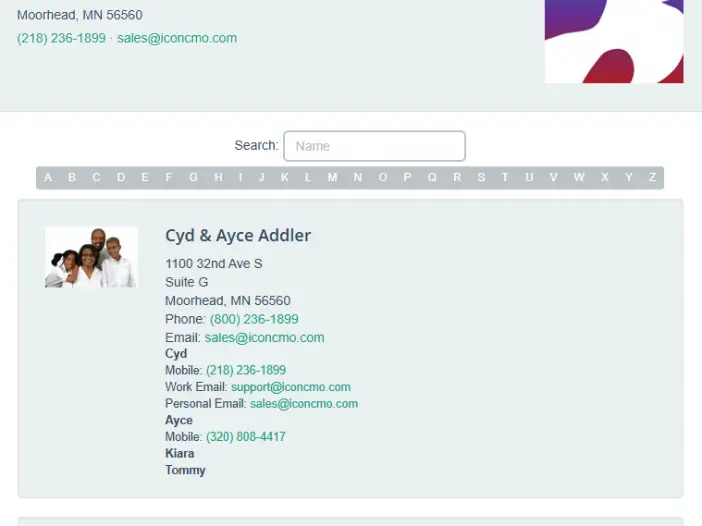
See the church member portal in action. For less confusion, we have split this post into two sections. Part I, church member portal for the desktop section and its screen shots; and part II church member portal for the mobile phone and its screen shots.
Part I (Member Portal – Desktop).
When you first log in you will see the following screen. Let’s take a walk through the options.
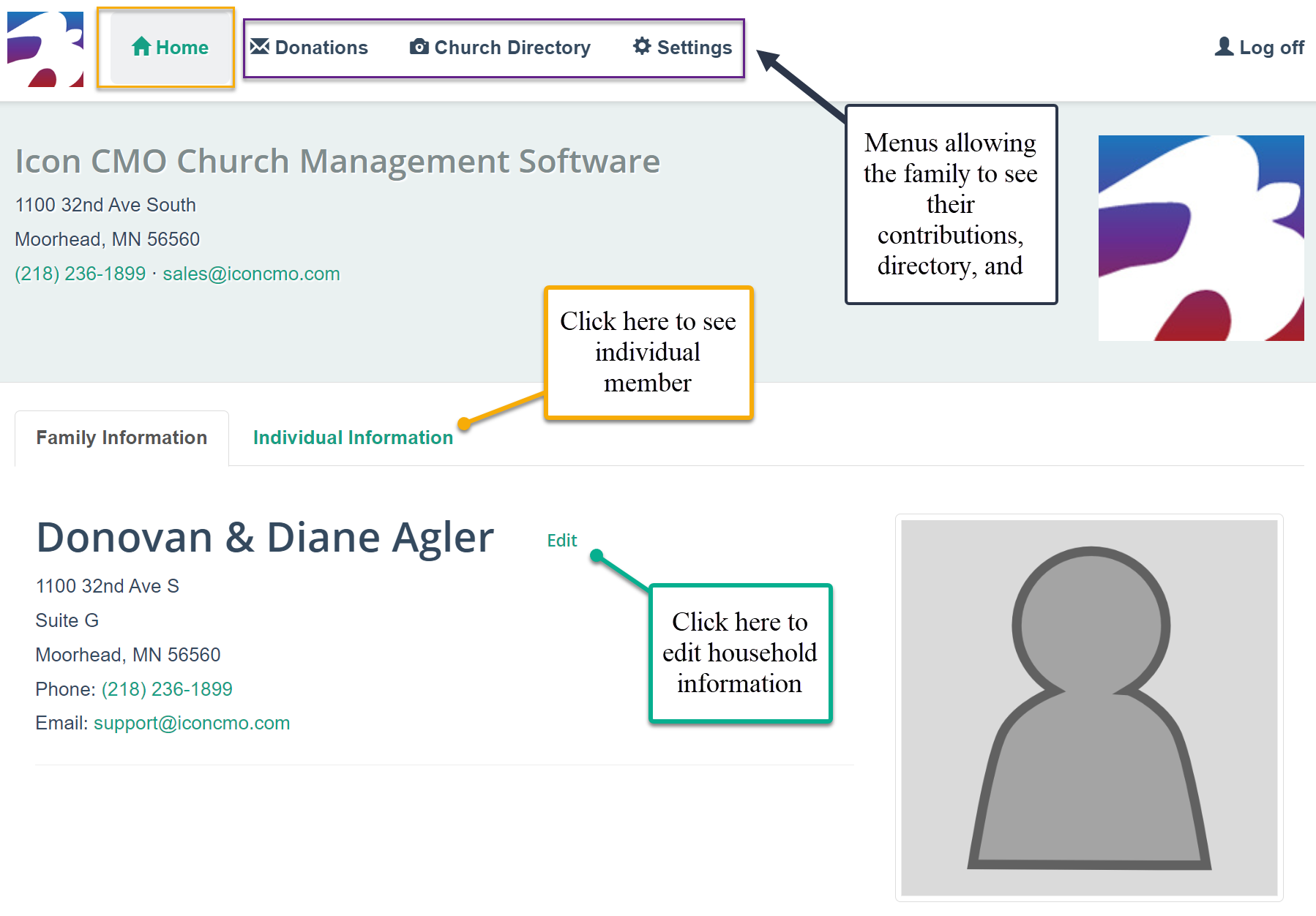
The yellow outline box and bubble shows the menus that can be selected and is currently set to the “Home” menu. The other selections are donations(Fig. 2), church directory (Fig. 3), and settings.
The Home Section
On the “Home” menu, as seen above in Fig. 1, the family can view the household information and individual information. If the family clicks on the “Individual Information” link, noted by the green bubble, they can view and edit individual church member information. The church must give them read write access for the family. Read access will only allow them to view the family’s data.
When the word edit appears, as noted by the purple bubble, the family can click on it and edit certain fields of their record. They however can’t edit their donations or other people’s information in the church directory. This edit option happens at the household and individual records and is updated immediately on the system for the church and its staff. Keep in mind there are two reports to show the last time a family logged in and what changes were made, which are found under People: Households-> Reports. Look for the reports that have ‘Member Portal’ in the report name.
The setting menu allows them to change their family password and has three fields for the current password, new password, and confirmation of the new password. The church should create a policy for their passwords so families do not choose easy to guess passwords.
Donations
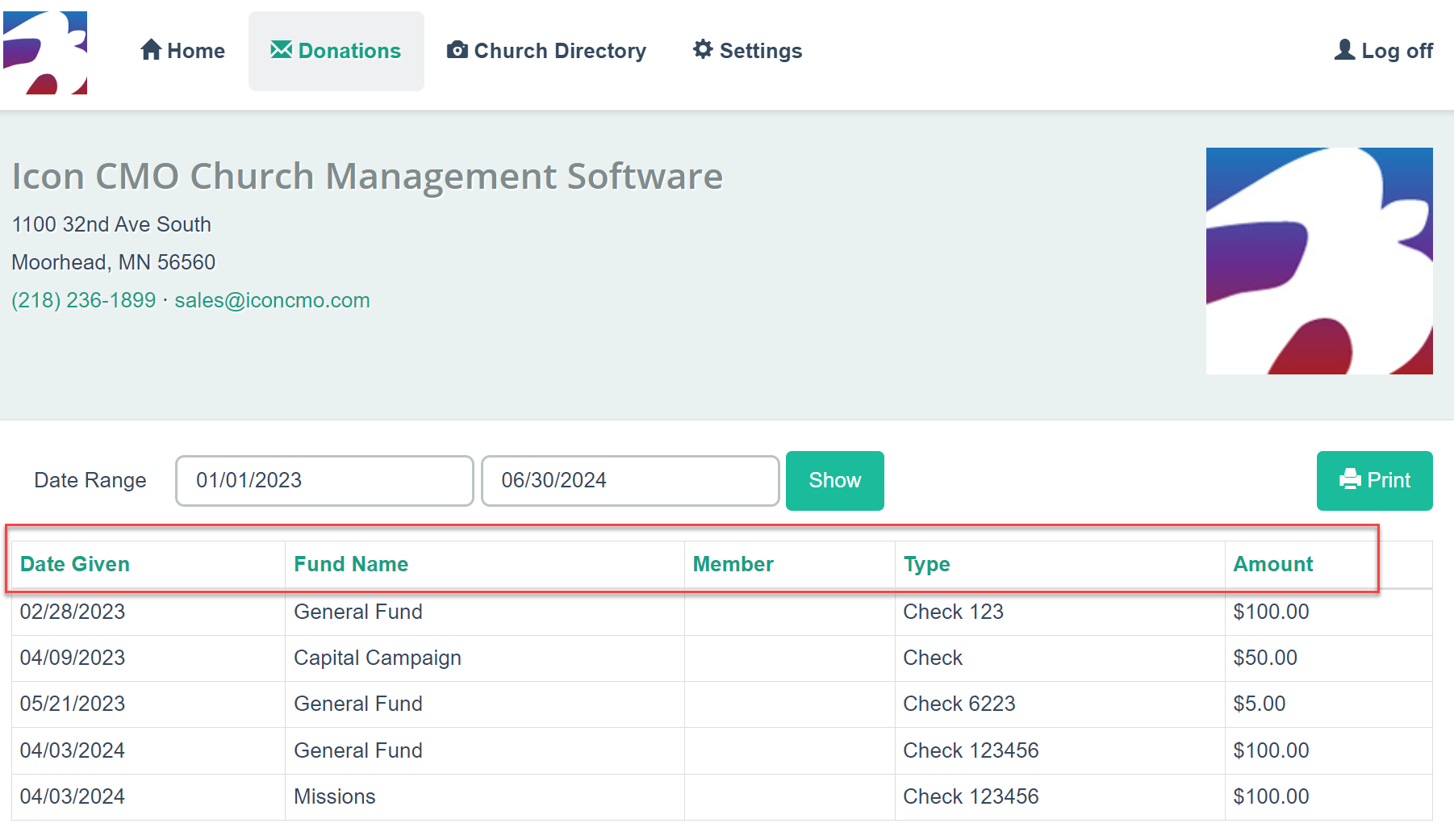
Fig. 2 above is what the screen looks like for the donation menu selection. The red box highlights the ability to do a sort on any of the column headings.
Church Directory
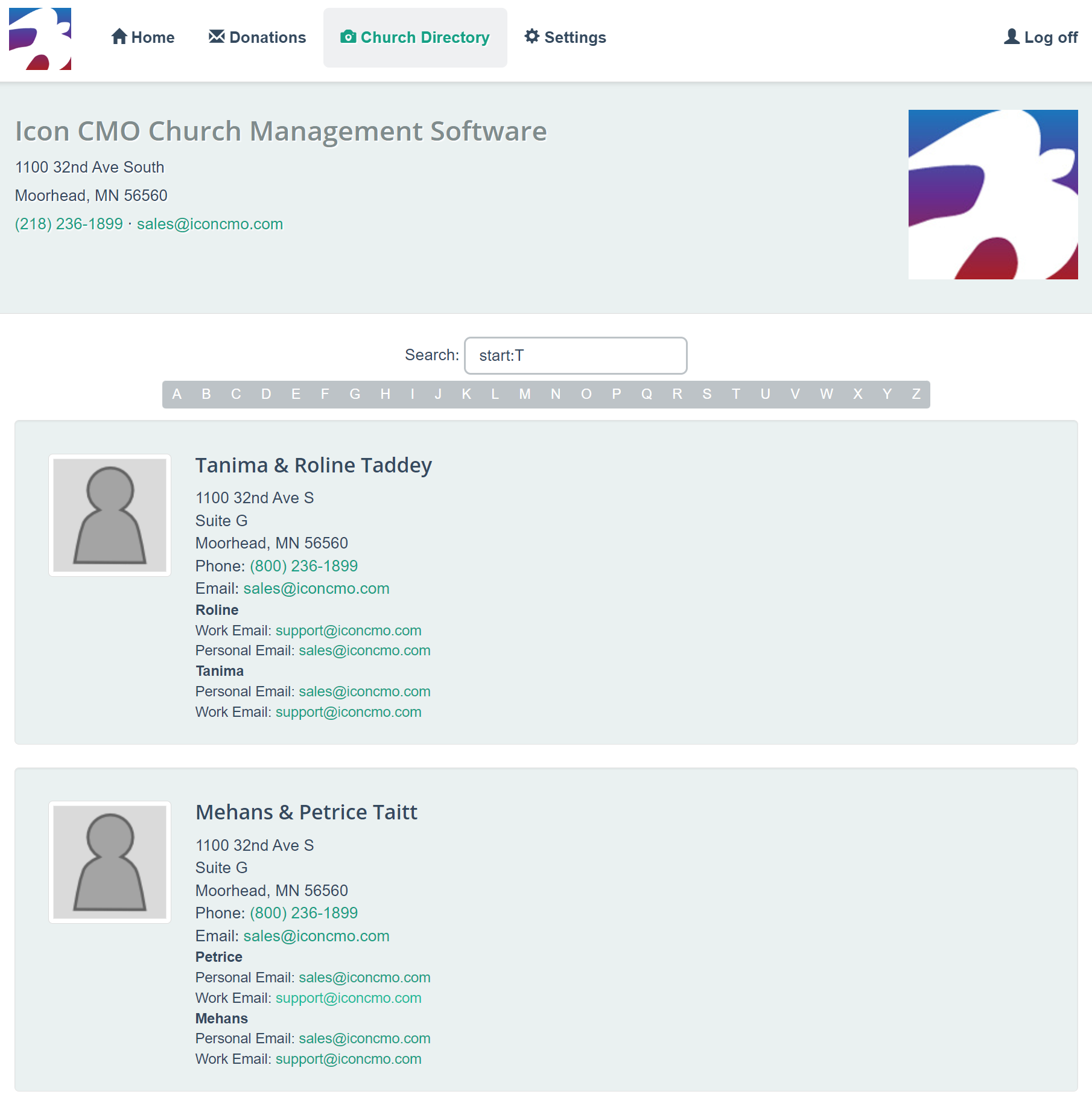
Fig. 3 above shows an example of the included church directory that church members can have at their fingertips when using IconCMO. When a mobile device is used the church directory goes from a two column to a one column directory, making navigation easier for mobile users. This will be seen in the up coming screen shots.
Part II – (Member Portal – Mobile).
Let’s turn our focus to what the mobile church member portal will look like when viewing from a much smaller screen – like an iPhone. Below you will see two screen shots showing this — Fig. 4 and 5. These were taken from an actual phone and depict the same information as above, but on a smaller screen that typically has less room for navigation and displayable data.
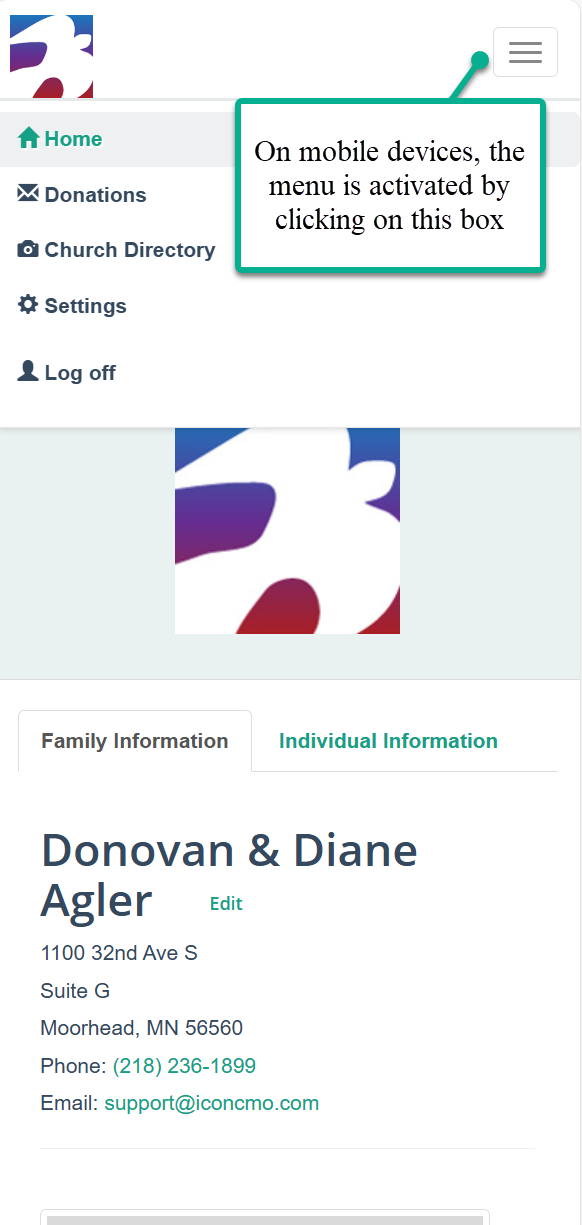
Above in Fig. 4 you see the screen shot of the actual navigation menu (illustrated by the green box) on a mobile device by using the square with lines in the upper right hand corner. Otherwise the navigation menu disappears so the user can see the data for their family, like the following screen shot — Fig. 5.
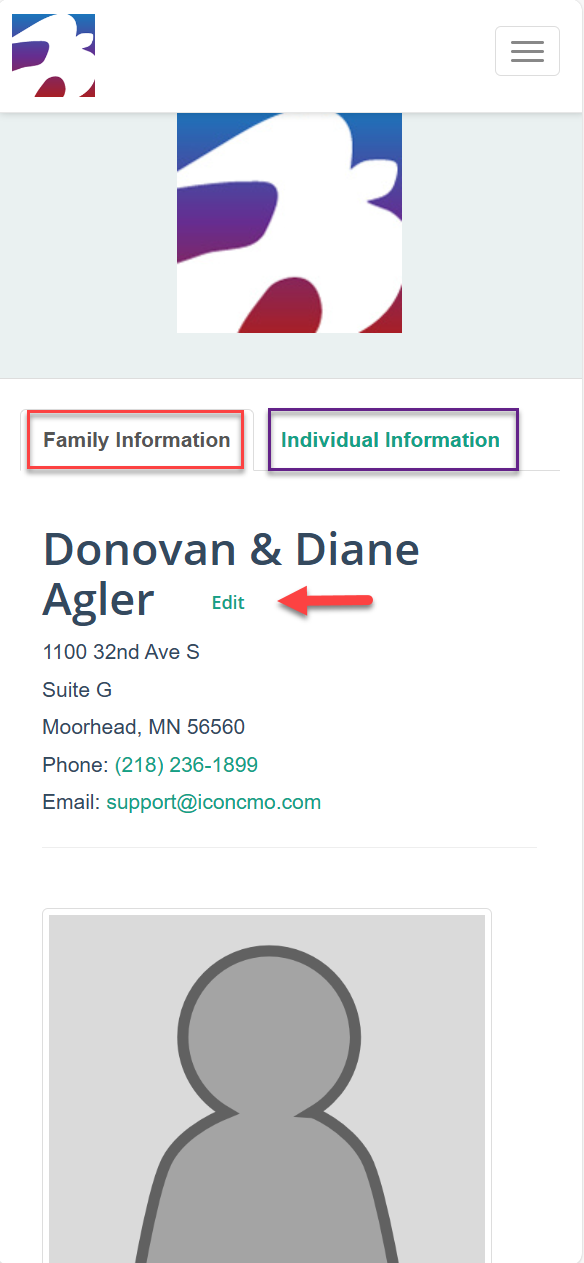
As you can see in Fig.5 the tabs for Family Information and Individual Information are still available in the same format as well as the edit function.