
This is part 2 of a four part series. See part 1, part 3, or part 4.
In Part 1 of this series, we looked at the following situation:
- Joe Smith gives $50 to the General Fund – a designation for the money the church can use for its general operations.
- Mary Jones gives $20 to the same fund.
- Ron and Becky Adams give $30 for the church’s youth group.
All this happened on February 16. The money was deposited in the bank on February 17.
Below I have the break down for how donations to the General Fund donation fund and Youth Fund donation fund will get recorded in the accounting system.
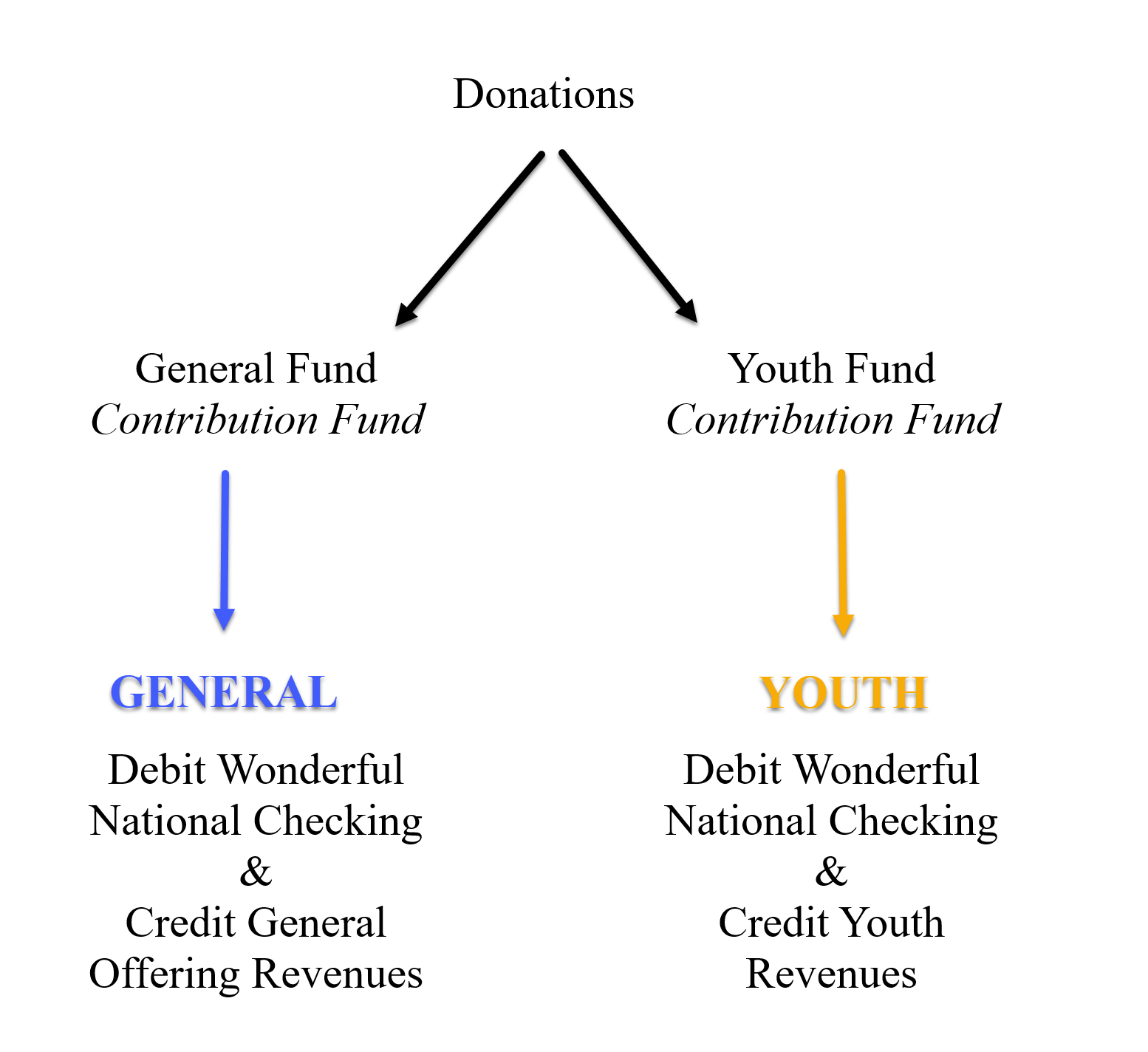
In the donation module, IconCMO is recording
- who gave,
- how much,
- for what purpose (or donation fund),
- and on what date.
In the accounting system, IconCMO is
- depositing the donations in the correct bank account,
- recording the donations as revenue against the correct revenue account,
- tagging, or designating, the deposits and revenue in our two accounting funds: the General Fund and the Youth Group Operations.
The last point above is how we accurately record donations so that we’re sure to use the money for what the donors intended. The General Fund can be used for the general operations of the church, but the Youth Group donations need to be used for youth group activities. This way, we always know how much money is available for use by the youth group.
Now let’s create our fictional batch.
In Donations: Funds & Donations, we create the batch. We’ll want to set the ‘Date’ to 07/22/2024 because that’s what we want as our accounting date for the bank deposit.

When entering the donations, we need to be sure to choose the right donation fund and use the right giving date.
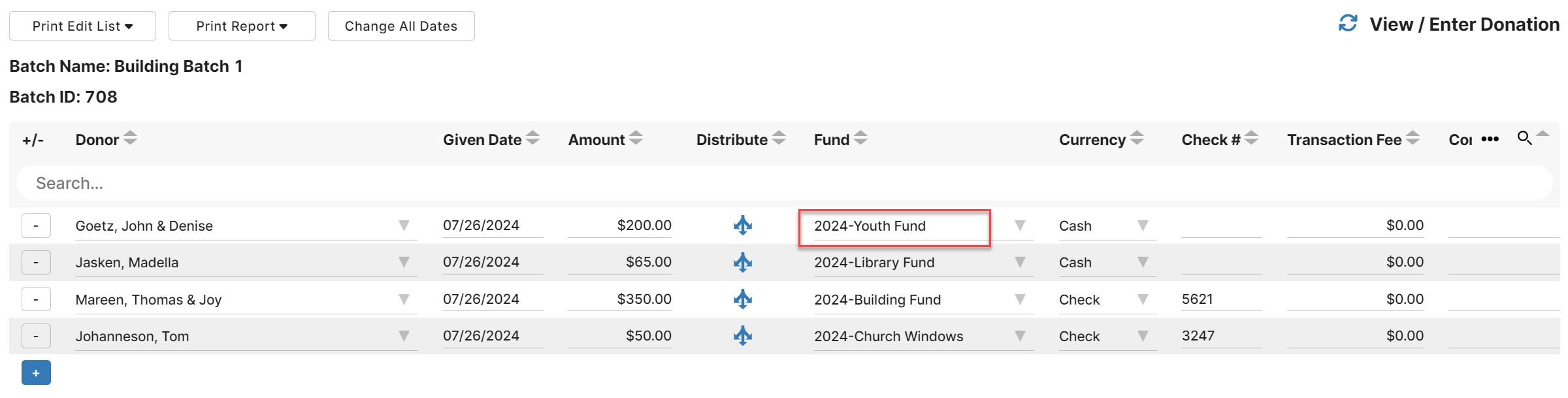
(For more on the window, you can go to “!getting started” in the upper right of your account and go to the Donation Setup Guide, or click “?help!” in the upper left of the window.)
The donation batch is posted immediately upon entry and can be changed at any time. A posting journal is available after you close the batch and is located to the left of the batch name using the printer icon. It looks like the below image.

Here is an example of the Posting Journal.
Click Statements to take a look at how these donations will show on the members’ statements.
Now on the accounting side, we can look up the deposit (General Ledger: GL Register) and see how exactly it was posted. I added highlighting so you can see how the two different accounting funds (General Fund and Youth Group Operations) are used.
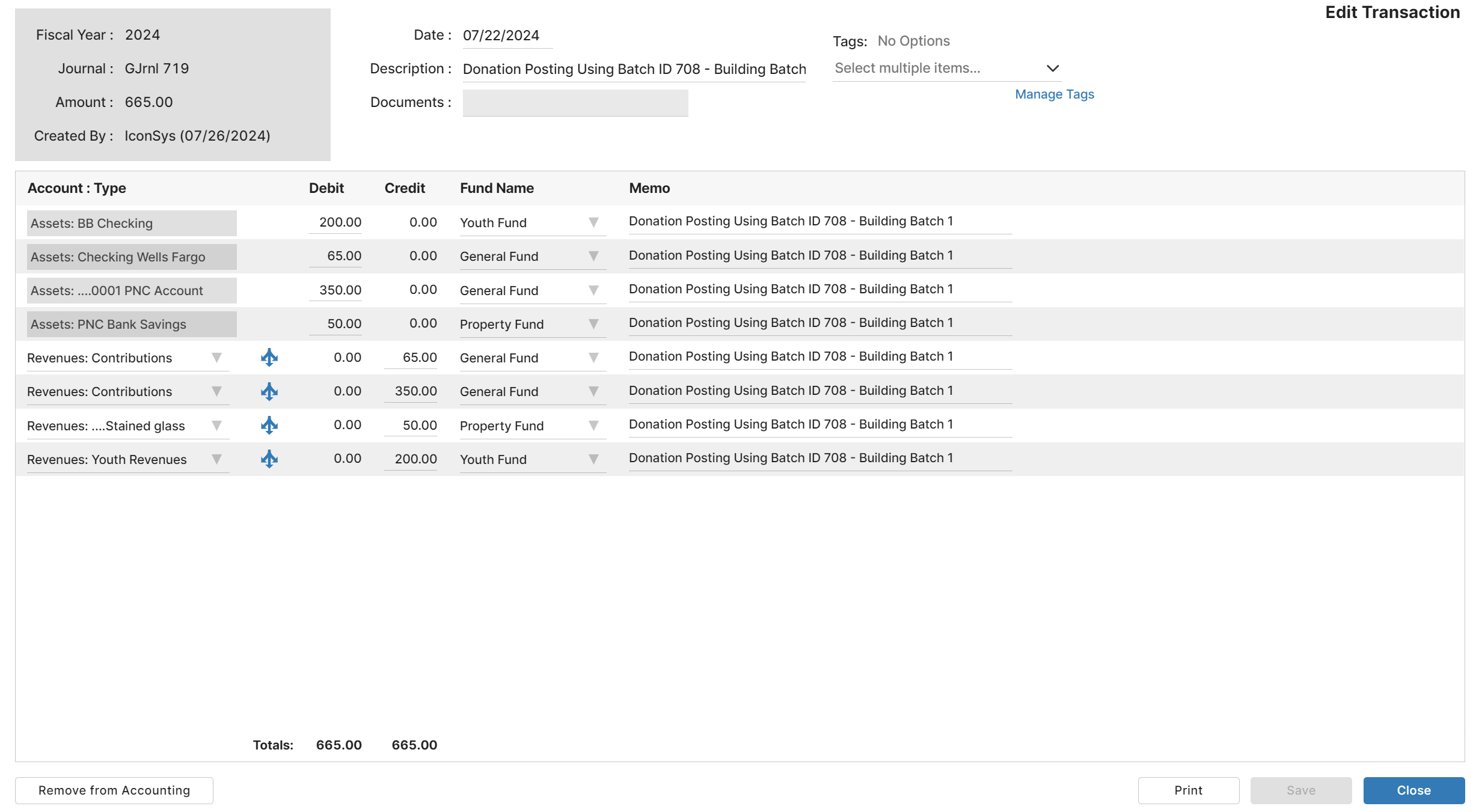
- A $30 deposit is recorded in Wonderful Nation Bank checking in the Youth Group Operations accounting fund.
- A $30 credit is made to the Youth Group Revenues account in the Youth Group Operations accounting fund.
- A $70 deposit is recorded in Wonderful Nation Bank checking in the General Fund accounting fund.
- A $70 credit is made to the General Offering Revenues account in the General Fund accounting fund.
- In total, this transaction deposits $100 into Wonderful National Bank checking
For the sake of simplicity, we’re starting this checking account with a balance of zero (no beginning balances). So checking now has $100 divided into our to accounting funds as shown. The $30 amount is designated for (i.e. must be used for) youth group purposes.
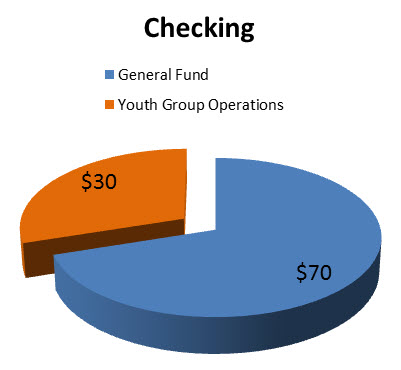
The ultimate goal of all this is, of course, to get accurate reports of the church’s finances, so let’s take a look at how what we just did shows up on reports.
- If we look at our Balance Sheet for the church, we see $100 in checking. If there were any liabilities or other assets, they’d show up here as well. The report ends with the value in net assets (that’s assets minus liabilities) of each fund.
- We can also run the Balance Sheet for just the Youth Group Operations accounting fund, which will show just the amount in checking that’s designated for the youth group. (You’d get a similar result running it for just the General Fund.)
- A Statement of Activities (which is like a Profit and Loss) shows our two revenue line items. There are no expenses recorded as of yet.
- A Statement of Activities for just Youth Group Operations will only show Youth Group Revenues, since that’s the only line item that’s been used so far by the Youth Group Operations accounting fund.
To complete the fund accounting picture – to ensure that we use, e.g., youth group donations only for youth group activities and always know how much is available for the youth group – we need to choose the correct fund when we record expenses.
Let’s take an example. On April 4, the youth group makes a trip to a history museum and has to pay a $20 fee for a tour, for which the church cuts a check.
We can enter the check in Banking: Enter Transactions- Check Writing as shown below. Note that we’re starting with a balance of $100. Now we need to make sure that the $20 doesn’t just come out of checking, but out of the Youth Group Operations (orange) slice of checking. So we choose the Youth Group Operations accounting fund to record the expense.
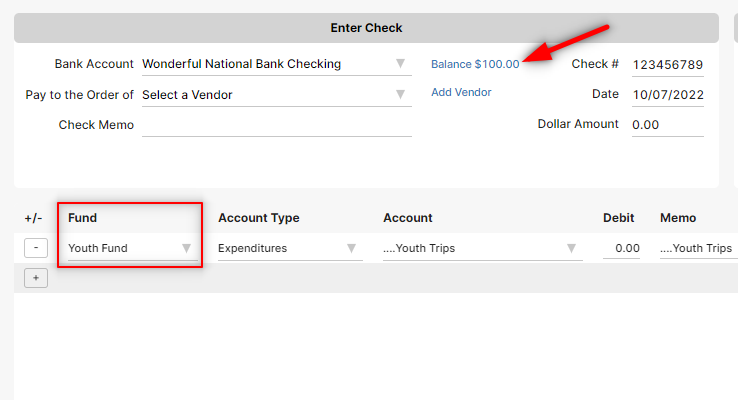
You can click on the “Fund Balances” button at any time (see blue arrow above) to see how the checking balance breaks down into the different funds (see below – highlighting added by me).
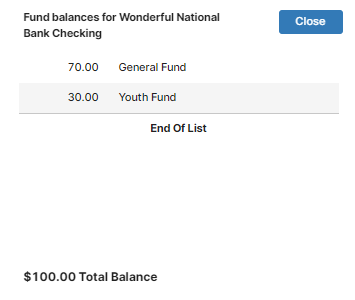
Once we post that check we set up, the $20 expense will be recorded in the Youth Group Operations accounting fund, which will then have a balance of $10 in the Wonderful National Bank checking.
Here’s the break down of designations for the $80 left in Wonderful National Bank checking after we post the check.
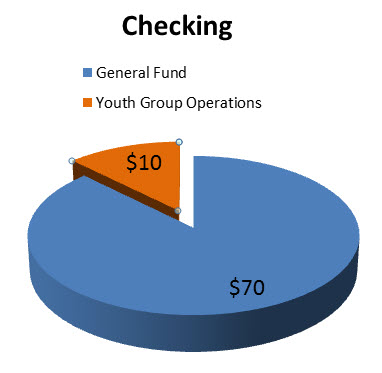
Check out how our Statement of Activities reports look now. Notice the net revenues are down.
Now we have an organized, dependable approach for handling donations, respecting donors’ wishes, and keeping track of how much money is available for our different church functions.
This is the most common, straight-forward way to handle donations with your fund accounting system. In Parts 3 and 4 of this four part series, we’ll add in a few twists, like special collections and pass-through donations.