The wrong liability or expense accounts were used. How do I correct that for posted batches?
Employer Expenses:
Employer expenses for paychecks that have already been posted can be updated by going to your ledger (either GL-Ledger or Checkbook Activity under Banking: Enter Transactions), locating the PrChk transaction, clicking to view the details, and selecting the appropriate expense account from the dropdown list in the expense field. You will need to correct the Employee Setup so that any future batches are posted correctly.
Employee Expenses:
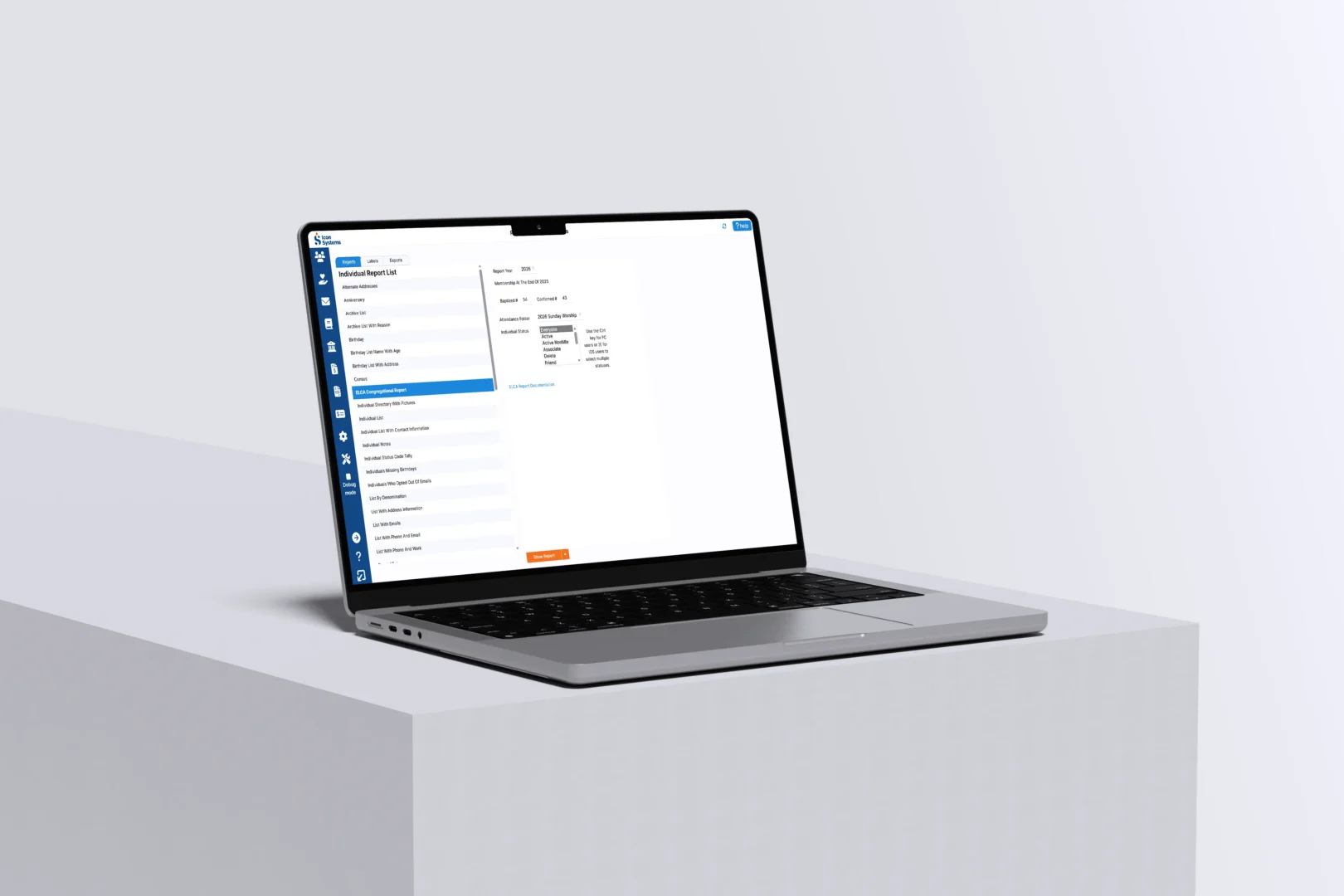
You will need to check the Employee Setup screen to ensure that you have selected the correct expense and liability accounts. You can only correct an employee’s expense accounts for an unposted batch. If the batch you want corrected has already been posted, you will need to return to the Pay Employees screen and unpost it. Once the batch is unposted, you can use the ‘Pull Fresh Setup’ icon to pull all new liability and expense accounts from the setup screen and put them into the existing batch. If you do not see the Pull Fresh Setup column, use the three-dot icon in the upper right to mark that column to display
If I want to unpost a batch, I receive a message asking if I want to Void or Delete the checks. What should I do?
You can use the Void option if the check numbers used in that payroll batch need to be marked in your system as voided checks. If you plan to use the same check numbers when you repost the batch or you are using all EFT checks, you will choose the Delete option.
The wrong fund was used. How do I correct that?
You must check the Employee Set up screen to ensure you have selected the correct Fund. You can only correct an employee’s fund for an unposted batch. If the batch you want corrected has already been posted, you will need to return to the Pay Employees screen and unpost it. Once the batch is unposted, you can use the ‘Pull Fresh Setup’ icon to pull in all new funds (as well as liability and expense accounts) from the setup screen and enter them into the existing batch. If you do not see the Pull Fresh Setup column, use the three-dot icon in the upper right to mark that column to display.
I made a change in the Employee Setup, but my batch won’t update. What should I do?
If the employee’s record is already marked in a batch—whether it is posted or not—it will reflect the previous setup for that batch. To update their record within a batch, the batch must be unposted. Then, when you edit the batch, you can remove the employee from it by removing the checkmark on their record and then re-adding them. This will pull in the information that is currently in the employee’s setup screen.
My Pay Withholding screen says ‘Overpayment.’ What do I do?
What causes it:
Unposting a payroll batch when the tax payments have already been posted. This causes the system to recognize that a payroll liability has been paid to a vendor when there was no liability amount that was due, so the system creates an overpayment of the balance of each liability.
How to Correct it:
If you did not change the tax amounts in your payroll batch when it was unposted, the same amount for each overpayment amount should appear on this screen.
I entered the wrong Check Numbers on my posted payroll checks. How can I correct them?
There are two ways to update check numbers.
Checkbook Utility
Go to Banking: Checkbook Utility, locate the check(s) with the incorrect number(s), and enter the correct numbers in the blank fields on the left. Click the ‘Submit Changes’ button.
Ledgers
Go to your ledger (either GL-Ledger or Checkbook Activity under Banking: Enter Transactions) and locate the PrChk transaction. Click to view the details and overwrite the check number in the upper-right corner. When the number is changed, this field will highlight in blue to indicate it differs from the number initially entered. Click the orange ‘Save’ button in the bottom right.
My withholding payments have already been posted, but they are showing up on the Pay Withholdings screen. How do I clear them out?
Here are a few reasons you may see the payroll withholding liabilities in this screen after the payments have already been posted to Icon:
You paid the taxes through the Banking module and not through the Pay Withholdings screen
Solution: You can mark all of the withholdings in the Pay Withholding window that were already paid through banking by clicking on the “Pay Full Amount” link. Then, at the bottom of the screen in the check writing form, there’s a checkbox to ‘Post to Accounting.’ Make sure this box is not checked. This will allow you to clear your withholdings without creating an entry in your accounting. You can always see the Payment history for any withholding posted through this window using the Payment History button at the top of this screen.
You unposted a payroll batch after posting the tax payment, which caused an overpayment to appear in the withholding screen.
Solution: If you did not change the tax amounts in your payroll batch when it was unposted, the same amount for each overpayment amount should appear on this screen.
A payroll batch was duplicated.
Solution: Go to the Pay Employees screen and delete the duplicate payroll batch.