The new iOS 6 was released not too long ago. A bunch of people seemed excited about the “Do Not Disturb” setting. On the other hand, I’ve also seen some negative feedback about the new maps. I haven’t heard much buzz about the ability to take pictures directly in the browser. Maybe this isn’t very exciting for the average iOs user. But for the iOS user who also uses IconCMO, it’s pretty awesome.
Here’s why
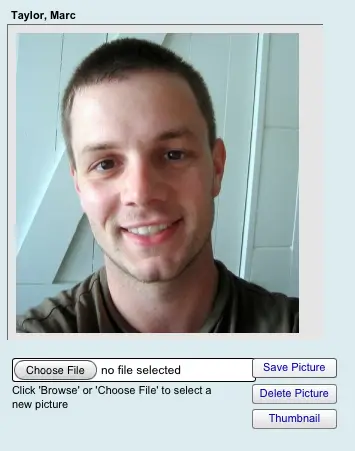
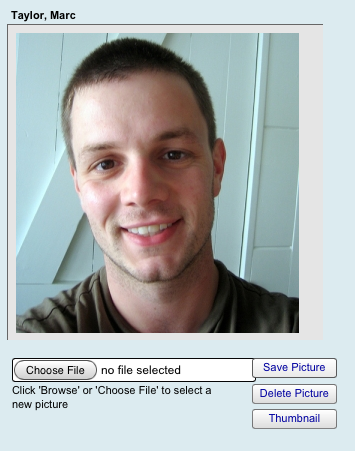
Say you’re walking along after the church service and run into Marc. Marc just returned from a mission trip to Guatemala over the summer so you hurriedly walk over to say hi and hear some awesome stories about his trip. Suddenly, you realize Marc wasn’t there last month when the rest of the church had their pictures taken for the directory.
He’s an elusive being – getting a picture of him is just about as rare as getting a picture of Sasquatch or the Loch Ness Monster. What do you do? You do what any reasonable church staff member would do in this situation: quickly reach into your bag and grab your iPad so you can snap a picture of Marc before he ventures off on his next mission trip.
And now we come to a twist in the plot where you choose your own ending.
Which iOS version are you using?
Older version of iOS
- Tap on the camera icon to take a picture of Marc.
- Then, open up Safari and log into IconCMO.
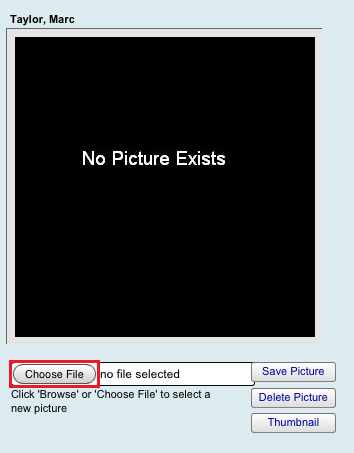
- Next, navigate to the People: Households: Hse-Pictures window and click on Marc’s name. Note: this would also work under People: Members: Mem-Pictures.
- Tap the ‘choose file’ button.
- Find the picture you just took of Marc and select it.
- Tap the ‘Save Picture’ button.
iOS 6
- Open up Safari and log into IconCMO.
- Then, navigate to the People: Households: Hse-Pictures window and click on Marc’s name. Note: this would also work under People: Members: Mem-Pictures.
- Tap the ‘choose file’ button.
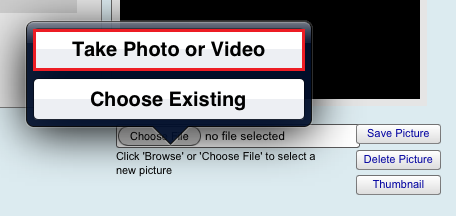
- Now for the awesome new feature in iOS 6 that you’ve been waiting for:
- Choose ‘Take Photo or Video’.
- Tell Marc to say cheese and snap a picture – right there in your browser without even having to go to the camera!
- Tap the ‘Use’ button to upload the picture into IconCMO or choose ‘Retake’ if you didn’t get a great picture the first time.
- Tap the ‘Save Picture’ button and you’re done.
Congratulations!
Okay, the term “choose your own ending” may not have been the proper title for this post. Because regardless of which option you chose earlier, you still managed to save the day by using your iPad to snap a picture of Marc for the church directory.
The End
P.S. Want to read more about using IconCMO web app on your tablet?
Visit our website: www.iconsystemsinc.com.