How to Record Allergies and Emergency Contact Information in IconCMO
It’s that time of year when kids are getting ready to go back to school which means Sunday school will also be starting. As you are preparing lessons and organizing classrooms, you might want to consider entering groups and adding important information such as emergency contacts and allergies to share with Sunday school teachers or field trip chaperones. Important information can be tracked in our Individual Notes section.
Groups Setup
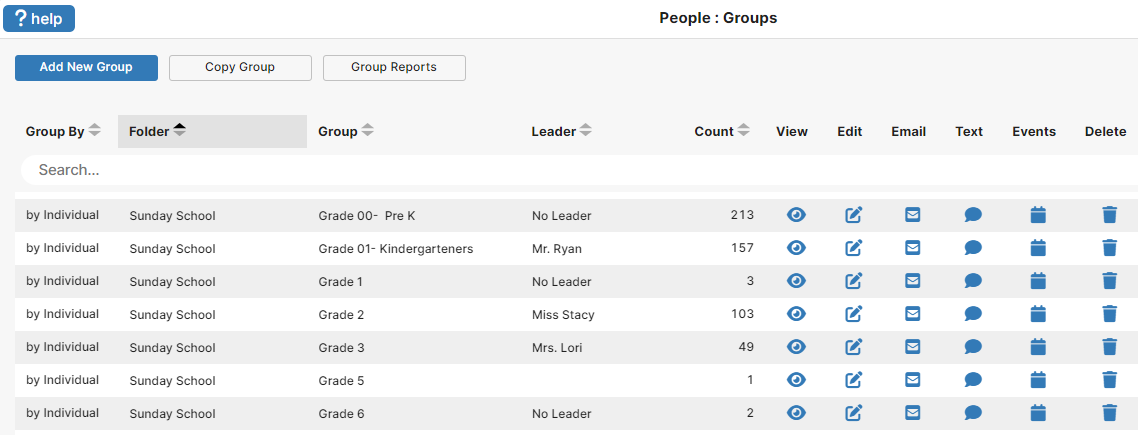
- Go to People: Groups
- Click Add New Group. A new line will populate and focus on the Folder field.
- Enter the category you would like to put this group into, such as Sunday School.
- Enter the name of the group, such as Grade 2.
- (Optional) Add the name of the Teacher/Group Leader under Leader field.
- Click the Edit icon for that group.
- Add children to the group.
- Scroll through the listed individuals and mark each one that should be in that group.
- Or click on the three dots in the upper right, and select your criteria using filters such as status code, age range, etc.
- The members that fit the given filters and criteria will populate in the list.
- Click “Add All” to mass add all listed individuals to the group, or mark the separate ones you wish to add.
- When you are done, click Close. You can Click the View icon to review the individuals in the group to see if you are missing any names.
Notes Setup
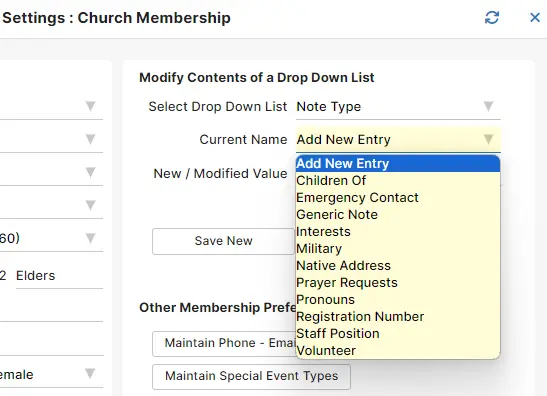
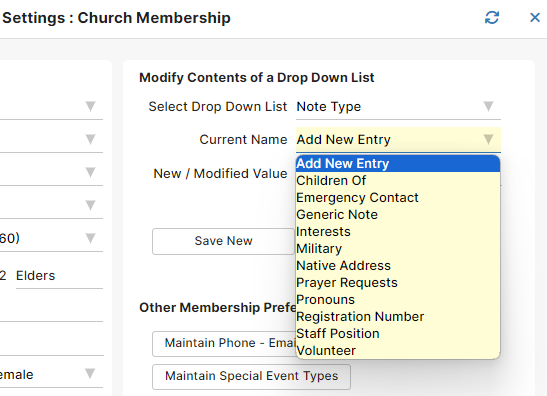
- Go to Settings: Church Membership.
- Under the Modify Contents of a Drop Down List section in the Select Drop Down List field, choose Note Type.
- Under Current Name, choose Add New Entry.
- Add the different types of Notes you would like to track for individuals in the New / Modified Value field.
- Click Save New.
Adding Notes
- Go to People: Individuals.
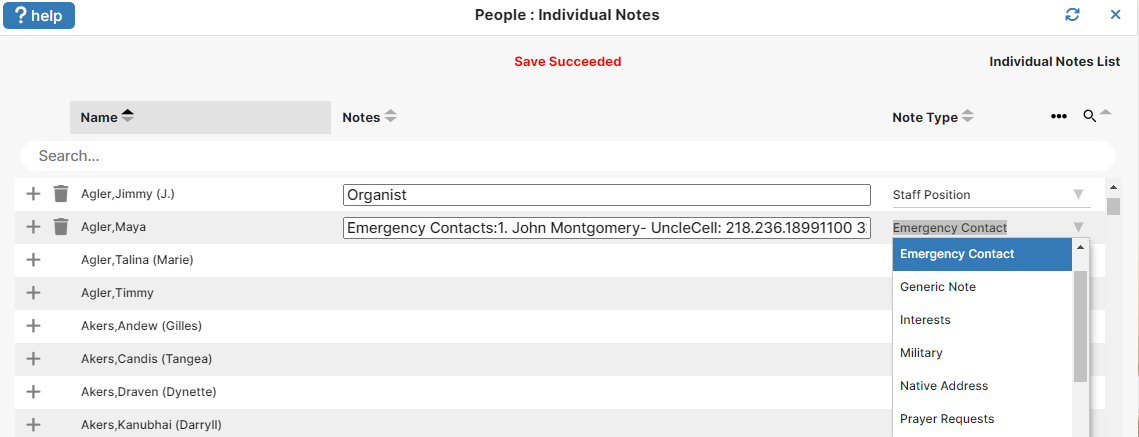
- Click on the Notes button at the bottom of the screen.
- Click the plus sign next to the name of the individual you want to add notes for.
- Record the note information such as emergency contact information and click the blue close button.
- Once the note is added, you can assign the Note Type for easier filtering and reporting.
Adding Allergies
- Go to People: Individuals.
- Select the individual you wish to add allergy information for.
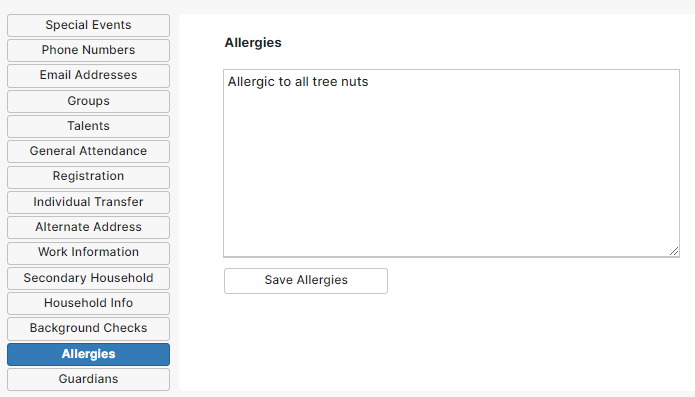
- Click on the Allergies button to open the text field.
- Record the allergy information.
- Click Save Allergies.
Report for Classroom Teachers & Chaperones
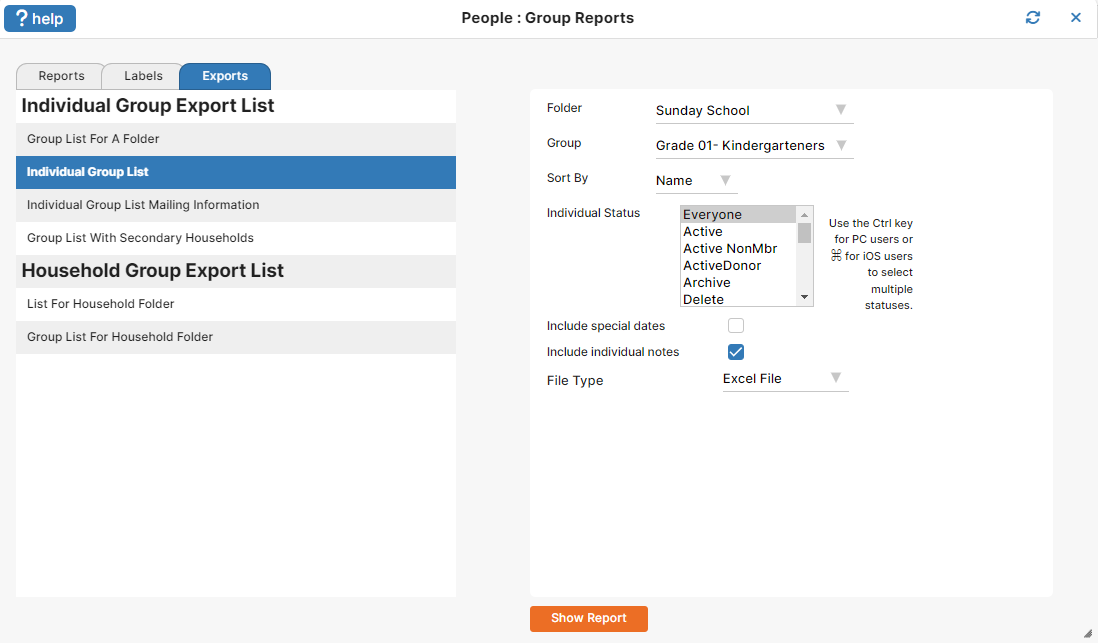
- Go to People: Groups and click the Group Reports button.
- Then click the Exports tab.
- Choose the Individual Group List report
- Select Folder and Group to run the report for and the option to Include Individual Notes
- Click Show Report
- You now have an excel file that can be customized with the information you want to share.