
Archiving is a great way to keep your database clean and your household count low for billing. Changing an individual’s status to ‘delete’, ‘remove’, or ‘archive’ does not archive them. Instead, a simple process can be executed to archive records in IconCMO.
Both household records and individual records alike can be archived. Although you can archive all household members at once through the household archiving process, only the individual records are archived. The household record is not. When pulling an individual record back out of the archives, you will need to unarchive each member of the household separately.
STEP-BY-STEP INSTRUCTIONS ON ARCHIVING
Household: Archiving all individuals in a household
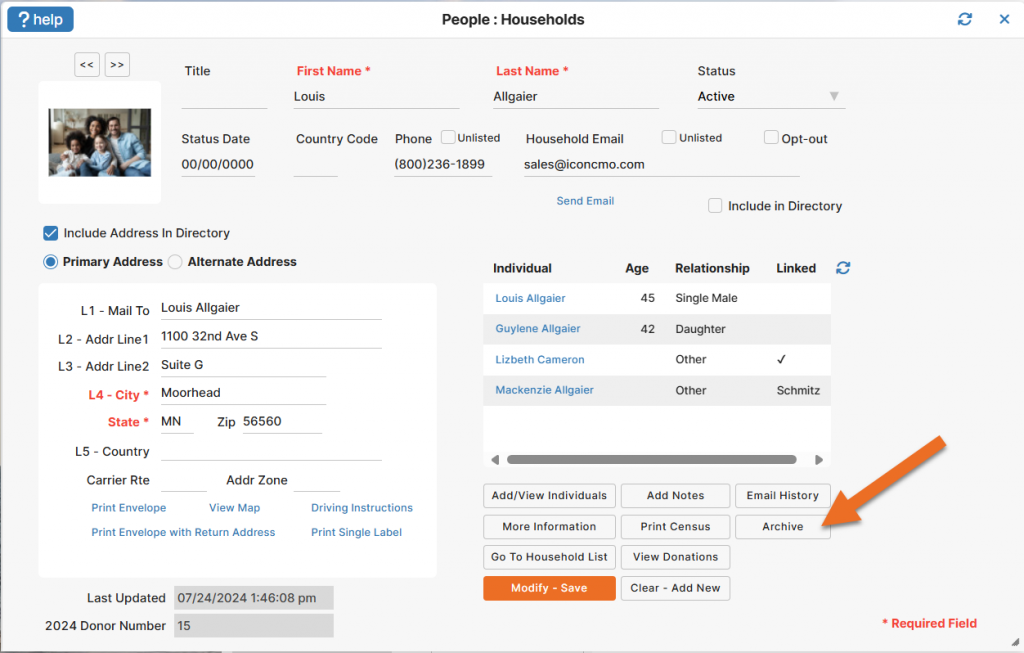
- Go to People: Households.
- Select the household you wish to archive.
- Click the “Archive” button.
- A pop-up will appear asking “Please enter a reason for archiving.” This is a required field.
- If donations are applied to the household you will get the message: “They last donated on” with the date and warning to print the donation statement before archiving.
- Click “Archive.” This will automatically archive all individuals within the household, to conclude the archiving process.
Individual: Archiving one individual within a household
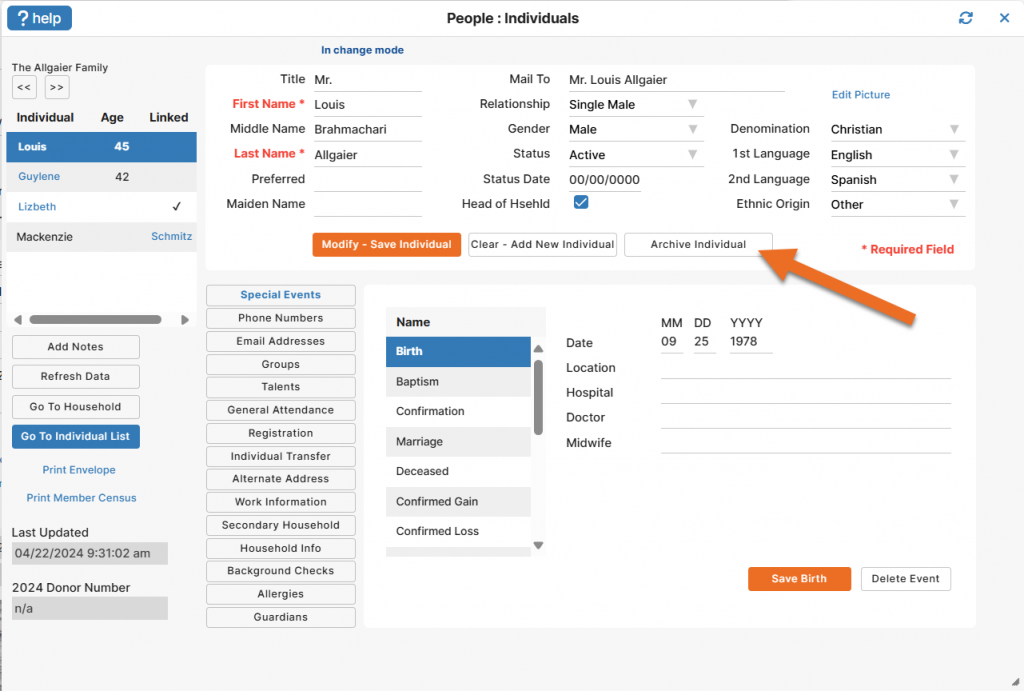
- Go to People: Individuals.
- Select the individual you wish to archive.
- Click “Archive Individual”.
- A pop-up will appear asking “Please enter a reason for archiving.” This is a required field.
- If donations are applied to the individual you will get the message: “They last donated on” with the date and warning to print the donation statement before archiving.
- Click “Archive” to conclude the archiving process.
NOTES
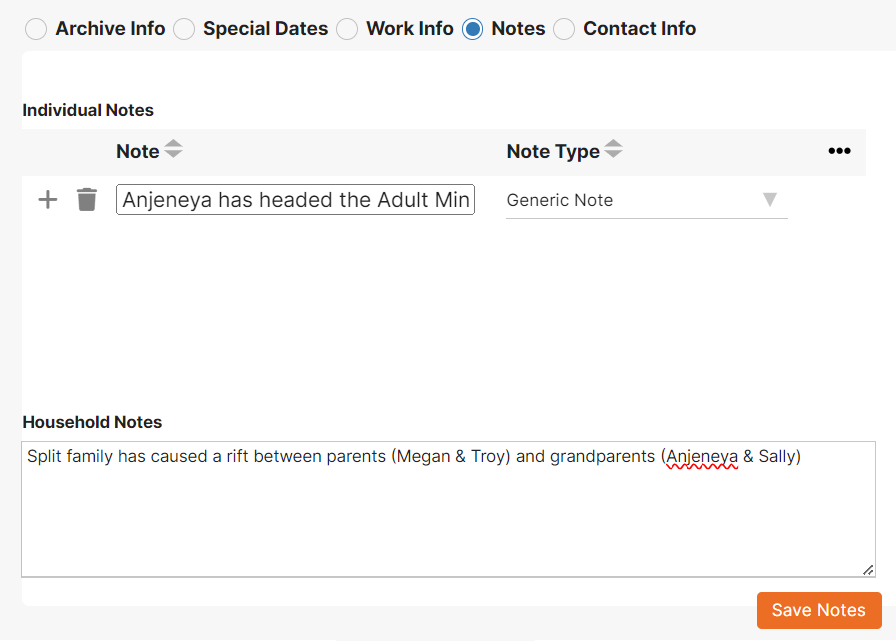
Household notes will be added to the individual’s record in the archives screen in addition to the individual notes.
DONATION STATEMENTS
You can unarchive an individual to print their donation statement at any time. Restoring them to their “Original Household” will automatically attach the donation records to the household. If you choose to add the individual to a new household: create a household, unarchive the individual into the new household, then go into Donations: Donor Numbers and give the new household a donor number. Finally, go to Donations: Funds & Donations and click the transfer button to transfer the donations from the old household to the new household.
REPORTS/UNARCHIVING
Go to People: Individuals: Archives to view the list of archived records. Filter the list by several fields in addition to printing by using the three-dot icon in the upper right.
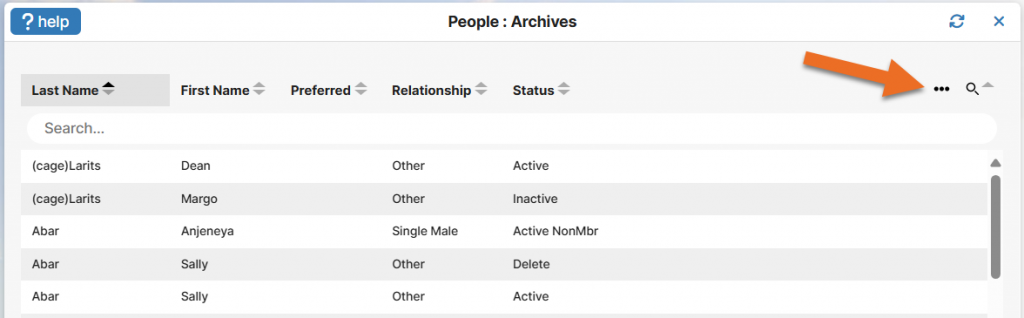
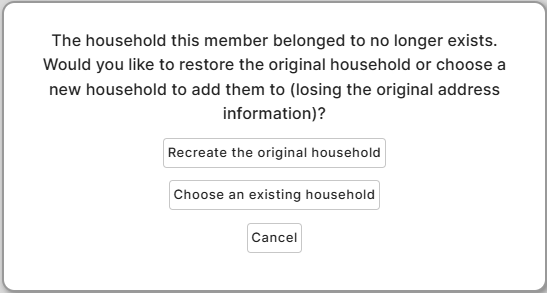
To unarchive an individual, click on their name to open their archived record. Then, click on the “Unarchive” button in the bottom left. Unarchiving an individual whose entire household has been archived, will give the following message: “The household this member belonged to no longer exists. Would you like to restore the original household or choose a new household to add them to (losing the original address information)?” At this point, your options are to recreate the original household or choose an existing household. Thus, if you intend to unarchive them to a different household, the household must be created before the member is unarchived.