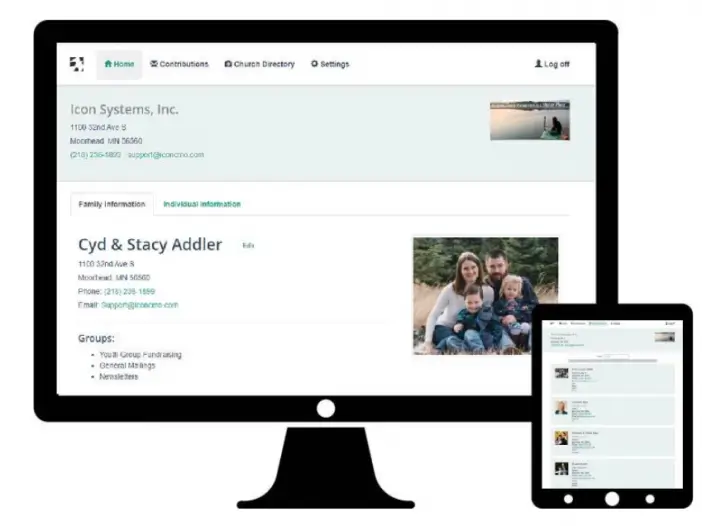

Adding photos to your IconCMO database to produce a picture directory is fairly easy. However, there are some details worth keeping in mind.
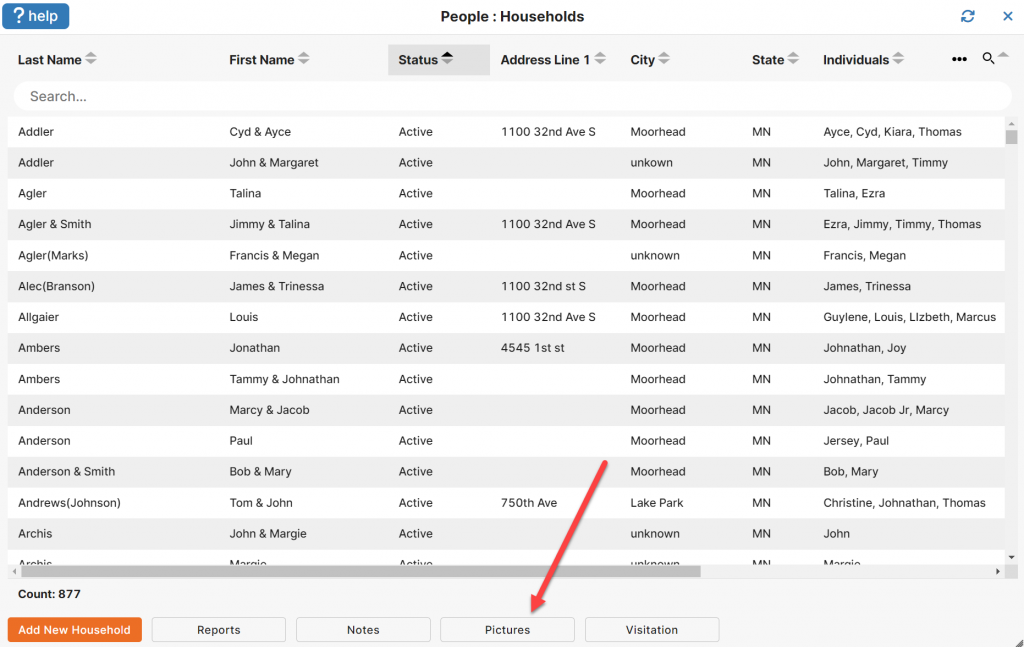
The “Picture Directory” report is found under People : Households : Reports. This directory report uses household images that were loaded under People : Households : Pictures for inclusion in the directory. It’s important to note that while pictures can also be added into IconCMO through People : Individuals : Pictures, the system uses HOUSEHOLD pictures, NOT Individual pictures for the picture directory. Therefore, when you are adding pictures for the express purpose of creating a photo directory, be sure to add them from People : Households : Pictures.
There are also format and size requirements for picture directory images. All images must be in either .JPEG or .JPG format. The size limitation is 300 pixels by 300 pixels. When a picture is of a different size, IconCMO checks the height and width of the picture and, depending on which is larger, automatically crops the picture while maintaining the aspect ratio. This results in a picture where either the width or the height is 300 pixels and the other dimension is less than 300 pixels unless the picture was perfectly square to begin with. When the original picture is a rectangle instead of a square, the resulting picture will fill the picture frame either horizontally or vertically, but not both. Also, it is typically to your advantage to reduce the image size before loading it into IconCMO, as this can cut down on the time required to transfer the image into your system.
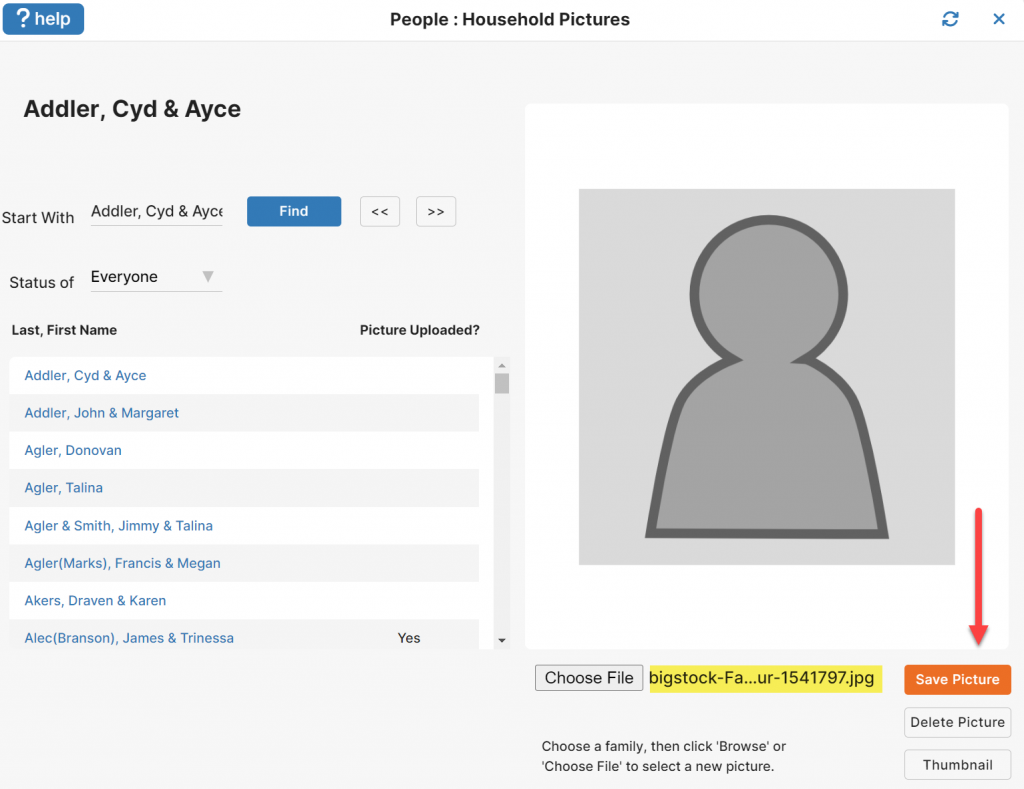
To load a new picture for the pictorial directory, go to People : Households : Pictures.
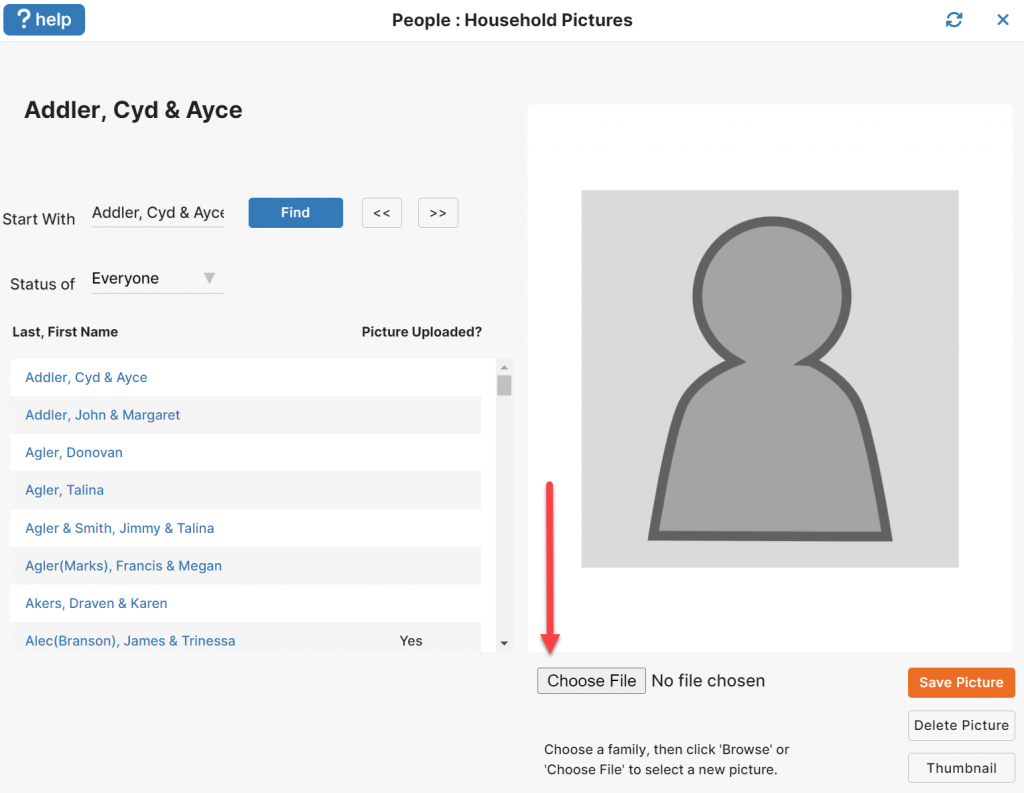
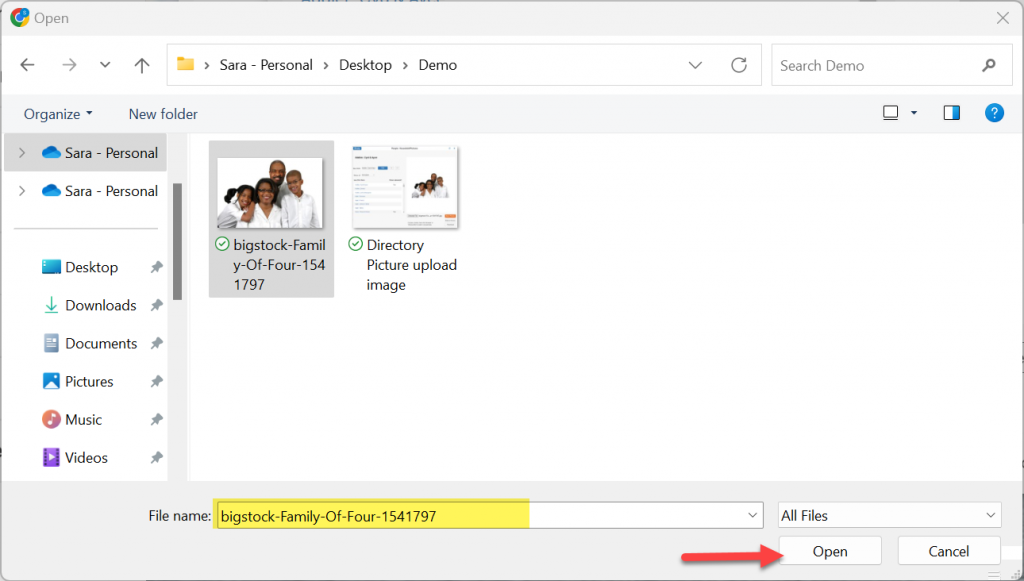
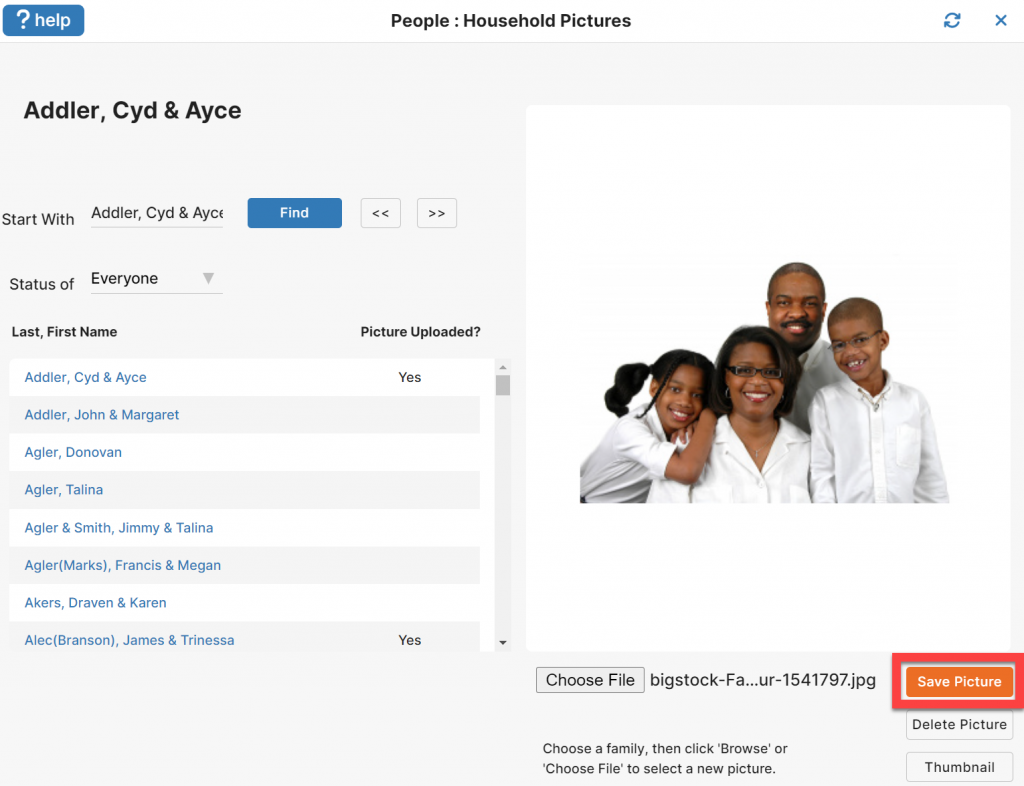
Click the ‘Save Picture’ button to store the photo in IconCMO and load the picture into the photo area.
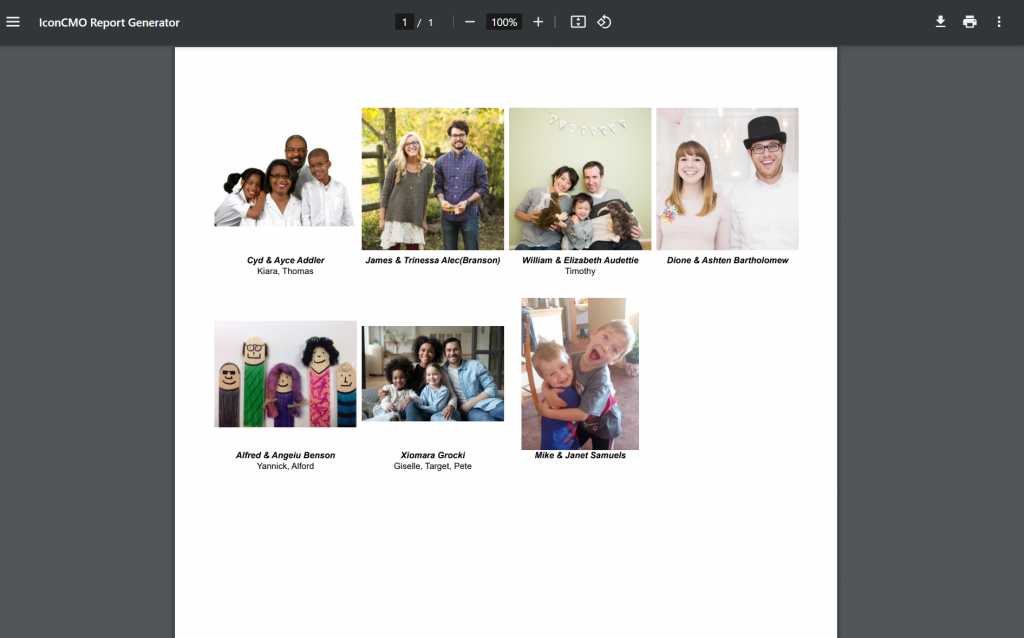
The picture directory can be viewed and/or printed by selecting it from PEOPLE : Households : Reports and choosing the “Directory With Pictures” report. Our example is shown in the screen shot below.
If you have questions about loading pictures or creating a picture directory in IconCMO, contact us at support@iconsystemsinc.com.